

Pay a deposit to confirm a booking
Some stores ask for a deposit or full payment before they confirm a booking. In SmartPOS Shopper you pay to confirm a booking right after you book: online on a secure payment page, or by bank transfer with a photo of your receipt. The booking is held only for a short time, so pay before the countdown ends.
The Pay to confirm screen
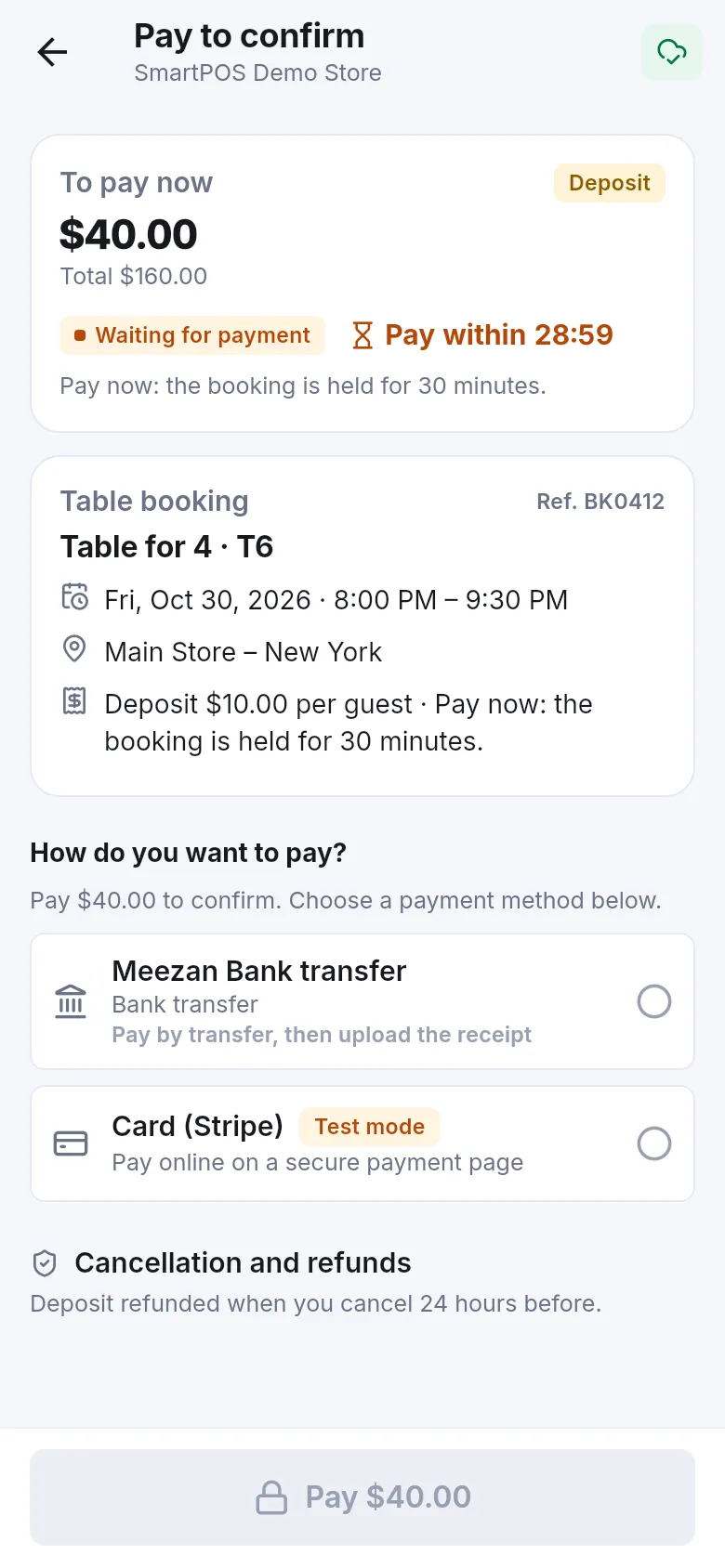
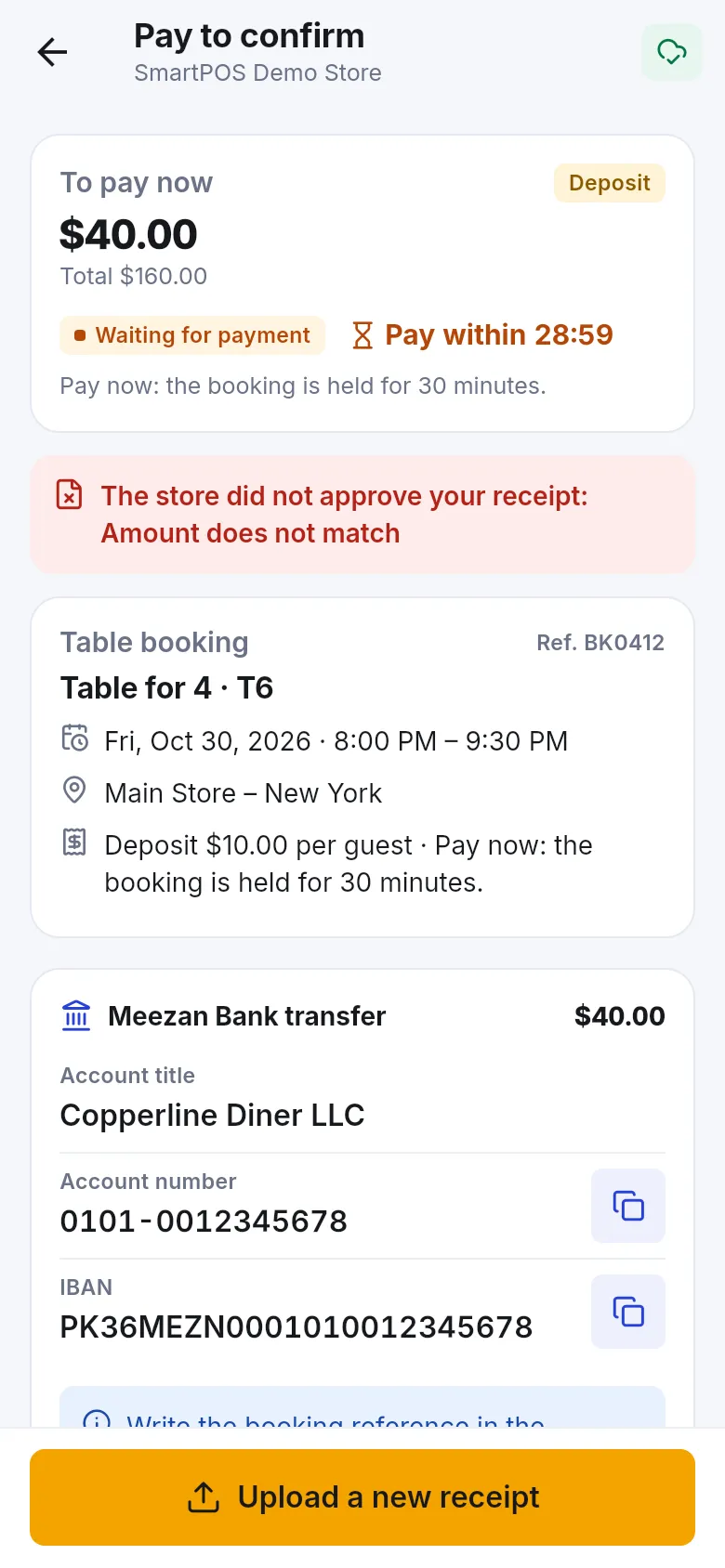
Section titled “The Pay to confirm screen”Right after you book, a store that wants payment shows Booked. Pay to confirm it. and opens Pay to confirm:
- To pay now — the amount, marked Deposit or Full payment, with the booking Total.
- Pay within a countdown (or Pay by a date) — how long the booking is held.
- Your booking — what you booked, when, where and the Ref. number.
- Cancellation and refunds — the store’s rule, for example a deposit refunded if you cancel 24 hours before.
Pay online
Section titled “Pay online”- Under How do you want to pay? pick the option that says Pay online on a secure payment page.
- Tap Pay with the amount.
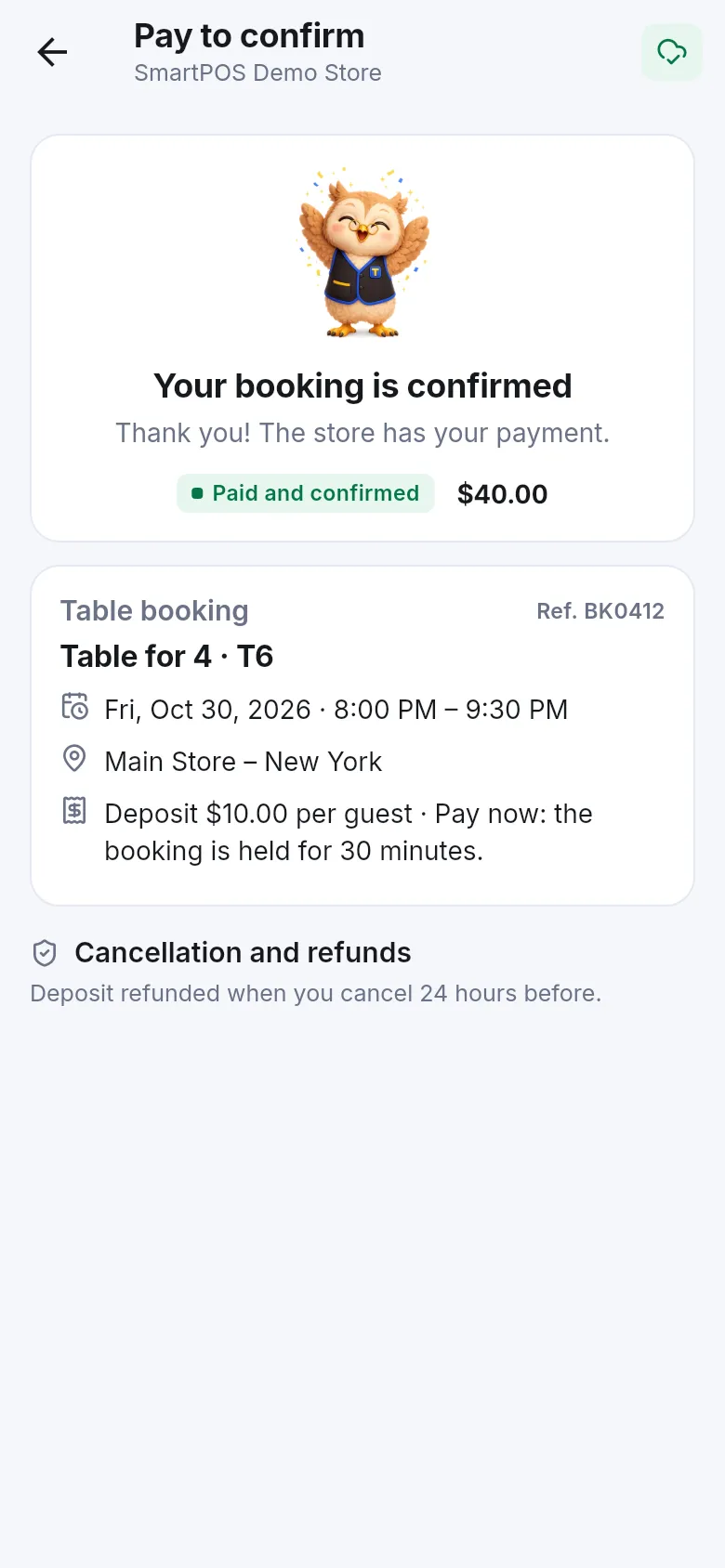
- Finish paying on the payment page that opens. “This screen updates by itself” — when you come back, the status changes to Paid and confirmed.
- If you closed the page by mistake, tap Open the payment page.
Pay by bank transfer and upload the receipt
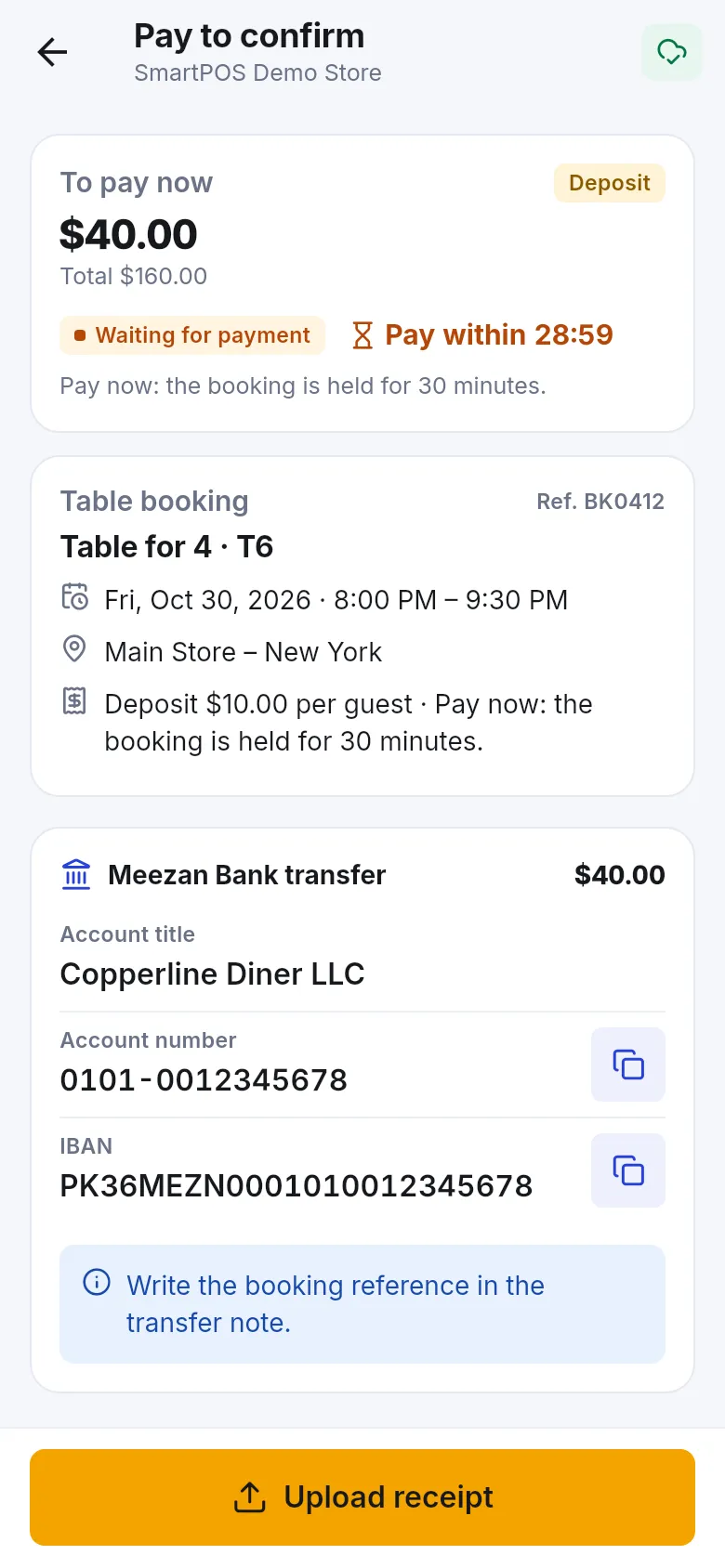
Section titled “Pay by bank transfer and upload the receipt”- Pick the option Pay by transfer, then upload the receipt (it shows the bank or wallet name).
- The account details appear: account title, account number, IBAN and so on. Tap Copy next to any line. If there is a code, use Or scan this code in your banking app.
- Send exactly the amount under To pay now from your bank or wallet app. Write the booking reference in the transfer note, as the screen asks.
- Back in the app, tap Upload receipt.
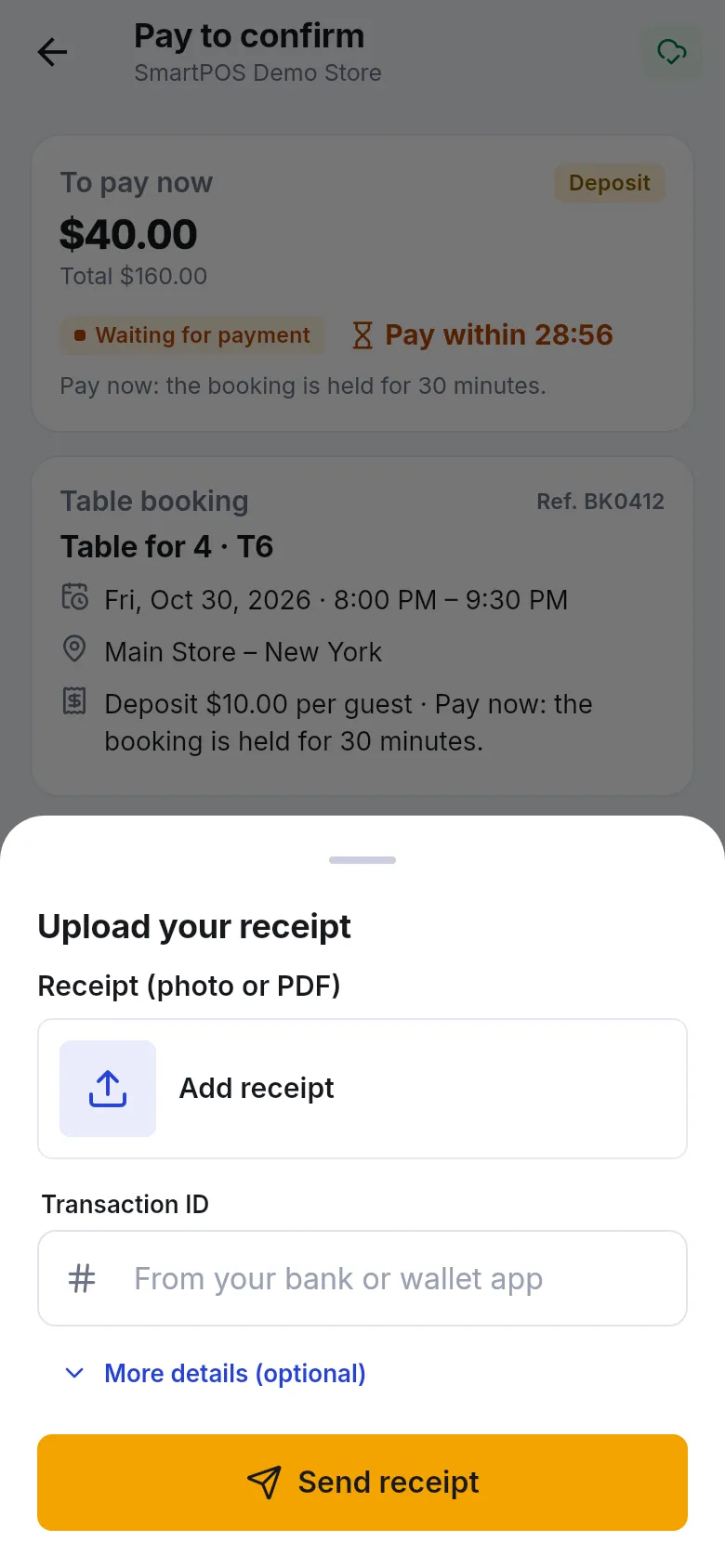
- Tap Add receipt and choose Take a photo, Choose from gallery or Choose a file (PDF).
- Type the Transaction ID from your bank or wallet app. Under More details (optional) you can add Amount sent, Date paid, Sender name, Sender account and a Note.
- Tap Send receipt. You see Receipt sent. The store will check it.
What happens next
Section titled “What happens next”| Status | Meaning | What you do |
|---|---|---|
| Waiting for payment | Nothing paid yet. | Pay before the countdown ends. |
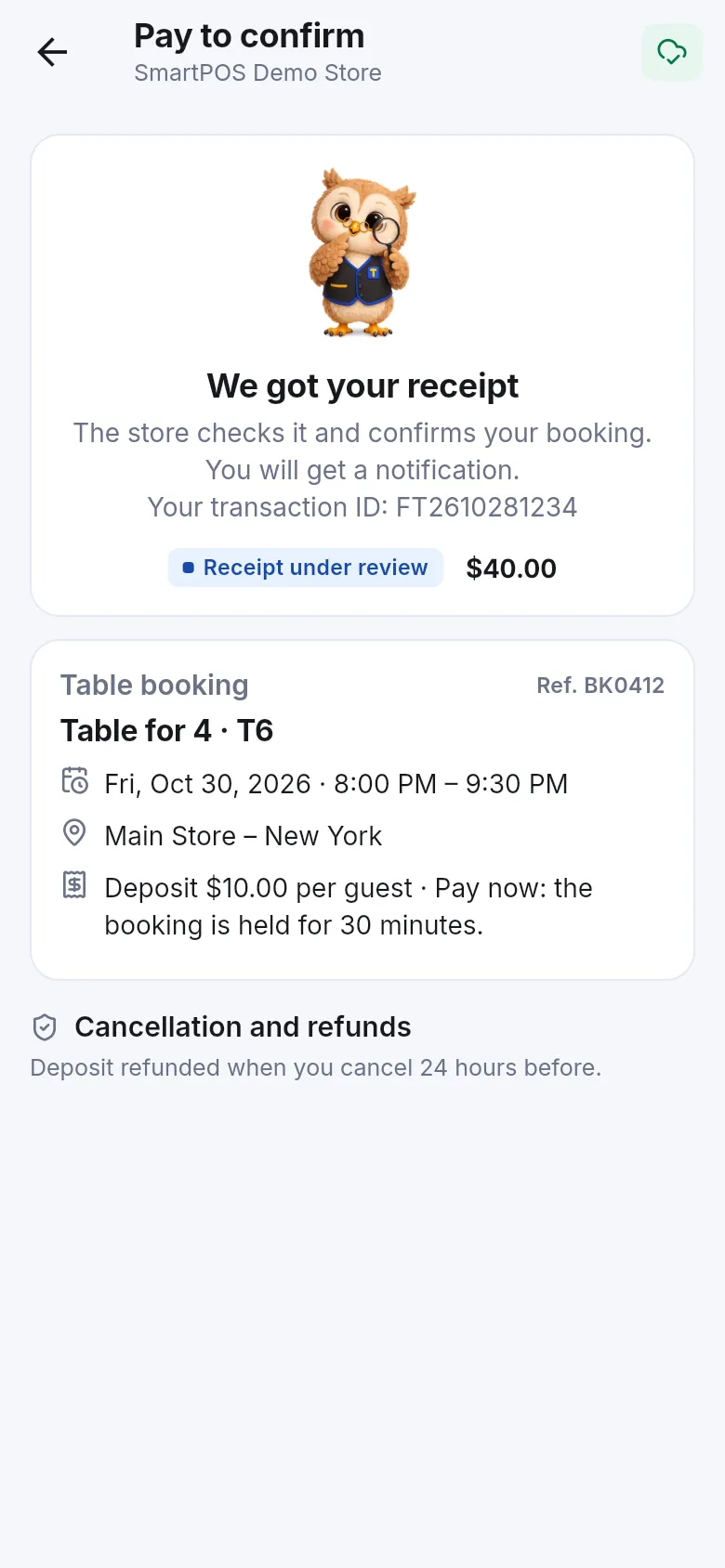
| Receipt under review | “We got your receipt” — the store is checking it. | Wait for the notification. |
| Paid and confirmed | The store has your payment. | Nothing — see you there. |
| Confirmed by the store | The store confirmed without payment in the app. | Nothing. |
| Expired | “The time to pay has passed” — the booking was released. | Book again. |
| Cancelled | The payment was cancelled. | Contact the store if unsure. |
If the store doesn’t accept your receipt, you see The store did not approve your receipt: with its reason (for example “Amount does not match”). Tap Upload a new receipt and send the right one.
See everything you still have to pay
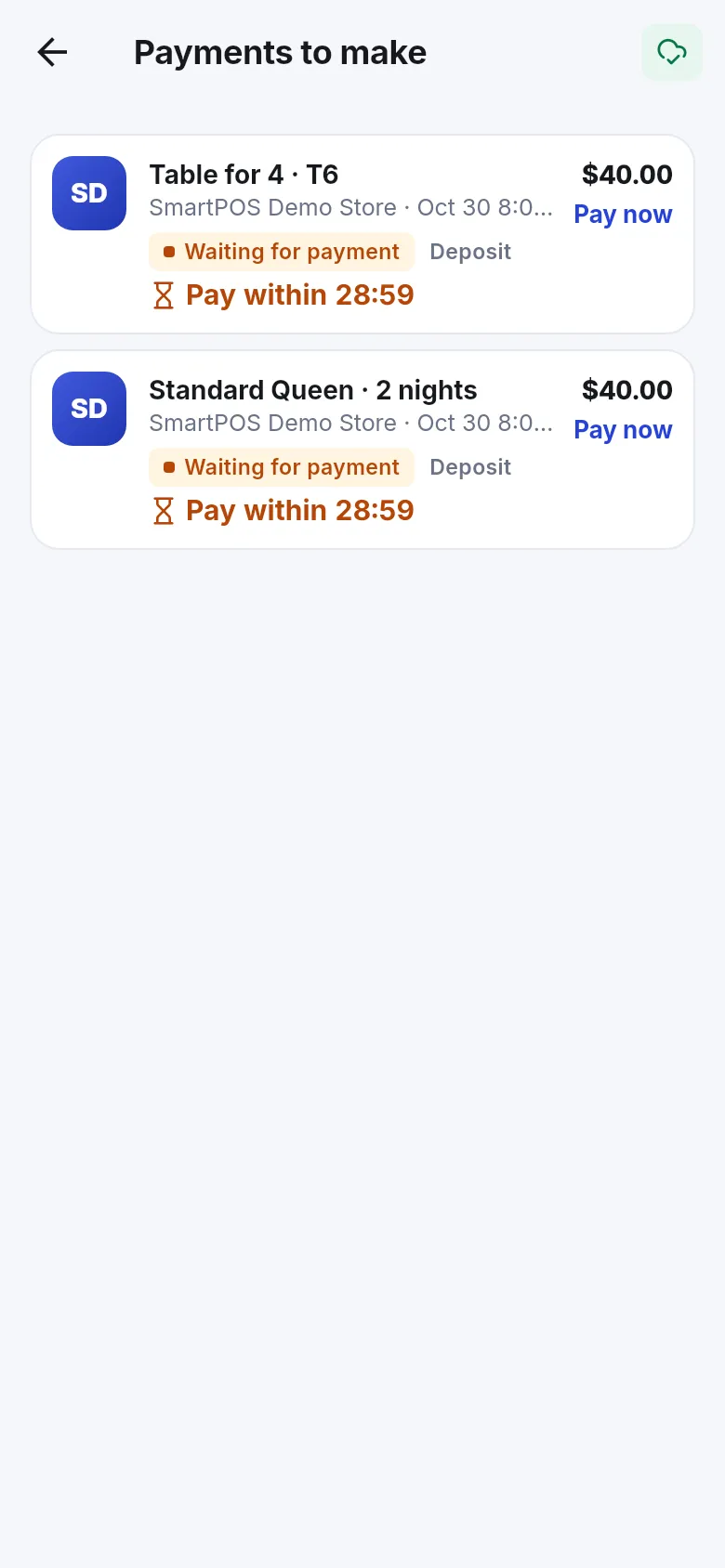
Section titled “See everything you still have to pay”Open Account › Payments to make (Deposits and payments for your bookings). Each line shows the booking, amount, status and the time left, with Pay now. When nothing is open: Nothing to pay.
- Use the exact amount and the booking reference — mismatches are the most common reason a receipt is not approved.
- Keep the receipt until the booking shows Paid and confirmed.
- Never send money to an account that is not shown in the app for that store.
Frequently asked questions
Section titled “Frequently asked questions”Why does my booking say Pay to confirm?
The store asks for a deposit or the full price before it confirms the booking. The booking is held for a short time, shown as Pay within with a countdown. Pay before the time runs out or the booking is released.
Which ways can I pay for a booking?
Whatever the store set up. Usually you can pay online on a secure payment page with a card, or by bank or wallet transfer and then upload the receipt. If the app says the store has no way to pay in the app yet, contact the store.
How do I pay a booking deposit by bank transfer?
Choose the transfer option, copy the account details or scan the QR code in your banking app, send the exact amount and write the booking reference in the transfer note. Then tap Upload receipt, add a photo or PDF of the receipt, type the transaction ID and tap Send receipt.
What happens after I upload my receipt?
The status changes to Receipt under review. The store checks that the money arrived and confirms your booking; you get a notification. If the store does not approve it, you see its reason and can upload a new receipt.
What if the time to pay runs out?
The booking is released and the app shows The time to pay has passed. You can book again if the time is still free. If you already sent the money, message the store with your transaction ID.
Which files can I upload for a booking payment?
A JPG, PNG or WEBP photo or a PDF, up to 8 MB. Take a photo with the camera, pick one from your gallery, or choose a PDF file. The transaction ID from your bank or wallet app is required.
Where do I see all bookings I still have to pay?
Open Account and tap Payments to make. It lists every booking, stay or membership that is waiting for your payment, with the amount and the time left. Tap Pay now on any of them.