

Edit your SmartPOS Shopper profile and photo
Your profile in SmartPOS Shopper holds your name, optional phone number, e-mail, profile photo and where you shop (country, city, area and address). Stores use your name on receipts and bookings; Find stores uses your country. This page shows how to edit your profile, change your photo, and sign out safely.
How do I edit my profile?
Section titled “How do I edit my profile?”- Open the Account tab.
- Tap the card with your name at the top (the pencil icon), or Edit profile.
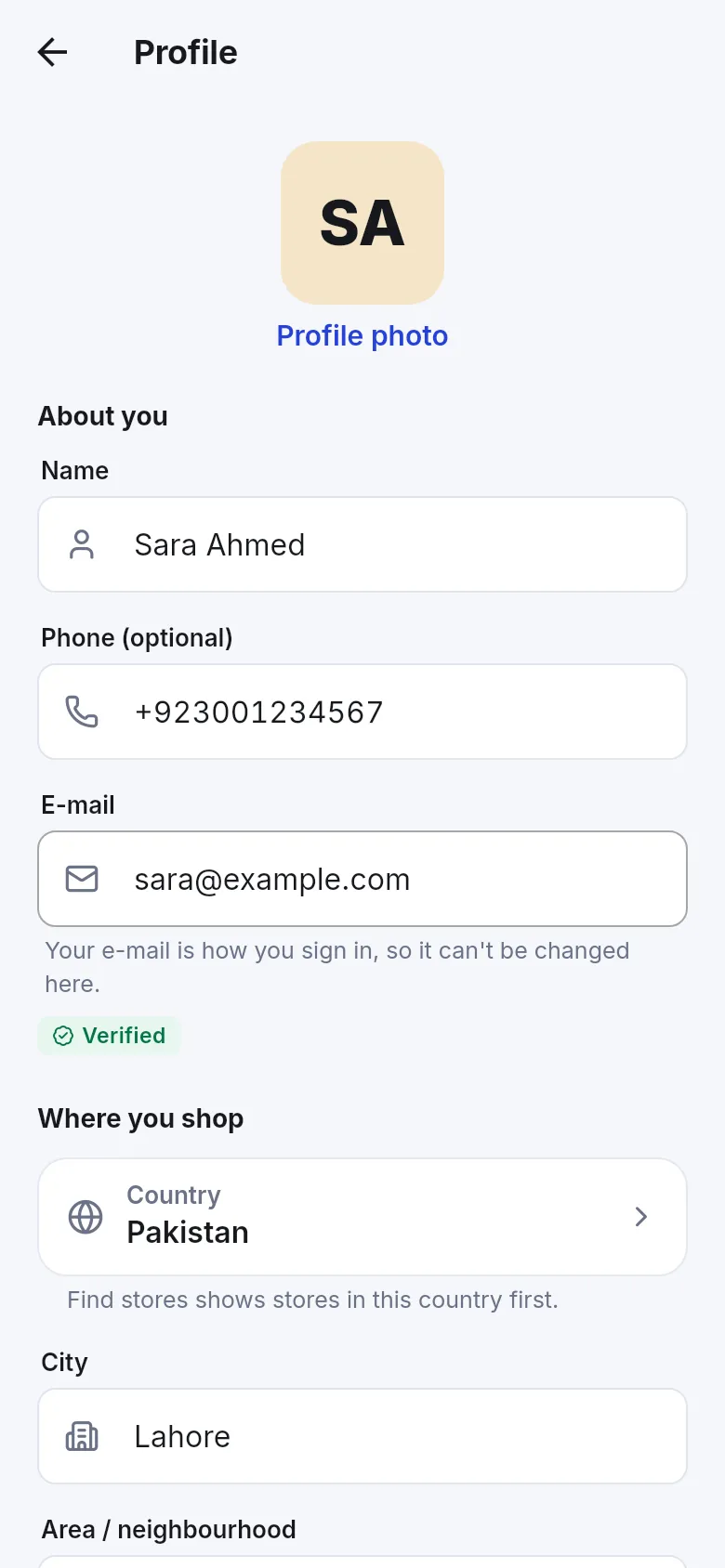
- The Profile screen opens. Under About you change Name or Phone (optional).
- Under Where you shop choose your Country, then type City, Area / neighbourhood and Address if you like.
- Tap Save. The app shows Saved.
What does each field do?
Section titled “What does each field do?”| Field | Who sees it | What it is for |
|---|---|---|
| Name | You and the stores you joined | Shown on your receipts and bookings |
| Phone (optional) | You and the stores you joined | Stores can call you about an order; needed for text-message notifications |
| You and the stores you joined | How you sign in. “Your e-mail is how you sign in, so it can’t be changed here.” | |
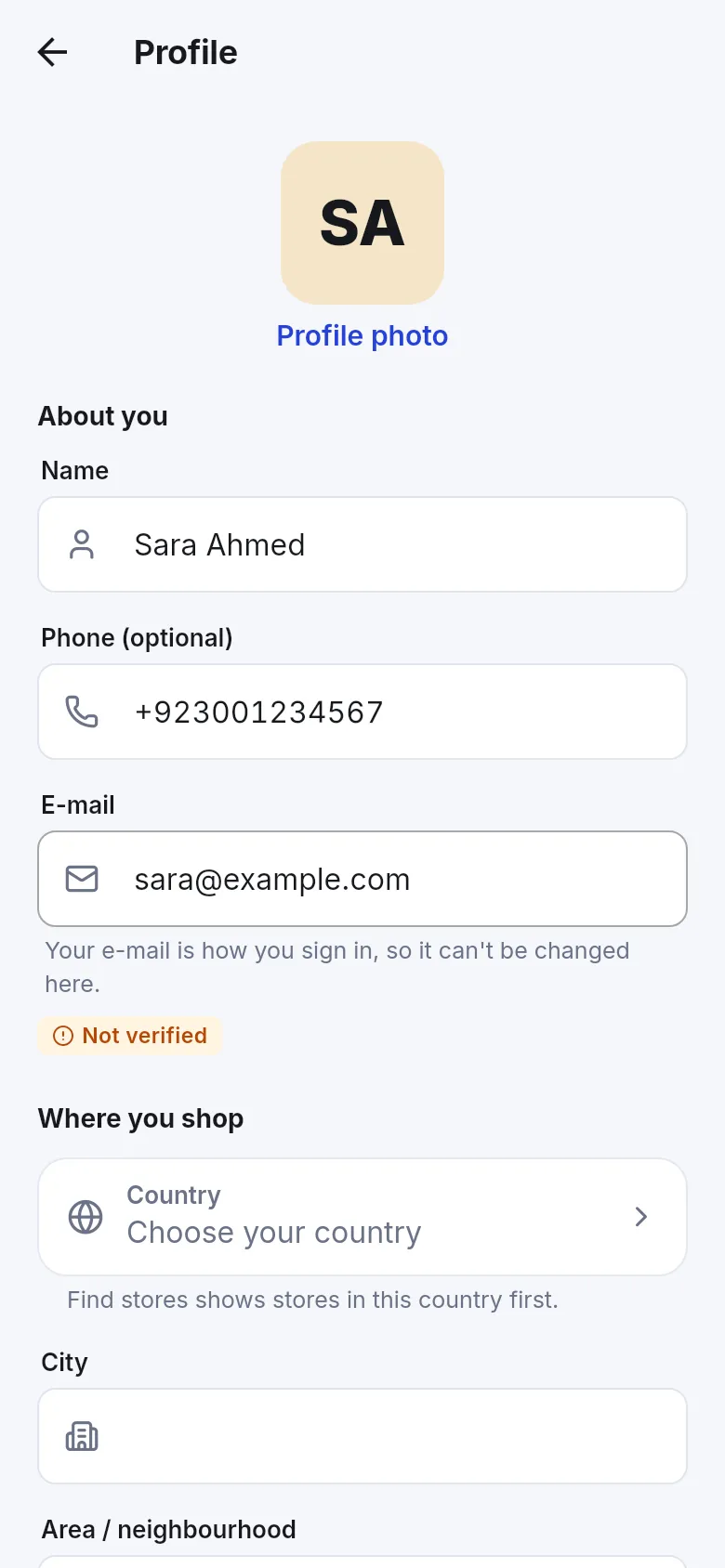
| Verified / Not verified | You | Shows whether your e-mail has been confirmed by a sign-in code |
| Country | Used by the app | “Find stores shows stores in this country first.” |
| City, Area / neighbourhood | Used by the app | Helps you find nearby stores |
| Address | Only you: “Only you can see this here.” | A note for yourself; delivery orders use the address you type at checkout |
| Language | Used by the app | The app language; see Language and dark mode |
How do I add or change my profile photo?
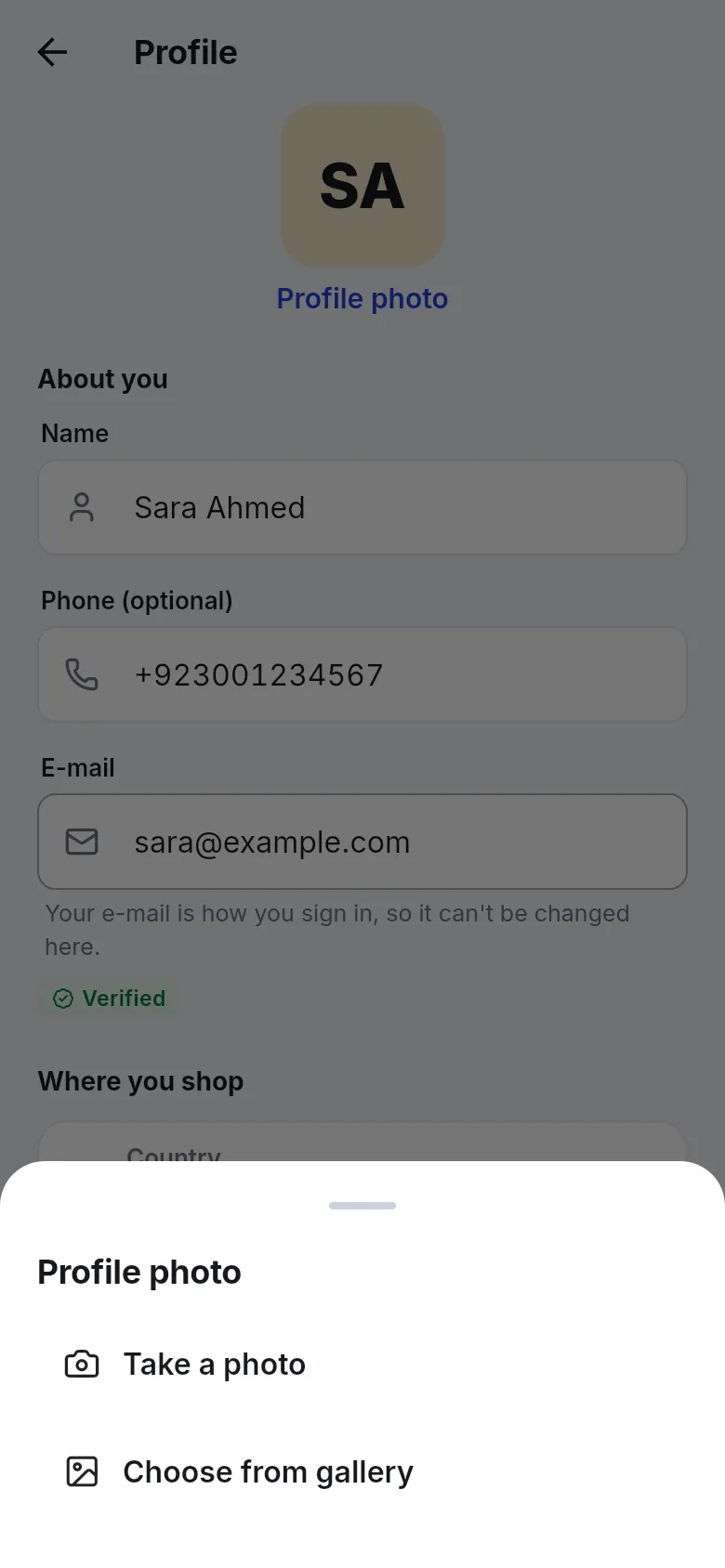
Section titled “How do I add or change my profile photo?”- On Profile, tap Profile photo (or Change photo) at the top.
- Choose Take a photo or Choose from gallery.
- Pick a photo under 5 MB. The app says Photo updated.
- To remove it, tap the photo again and choose Remove photo.
The app removes hidden information such as the location where a photo was taken before it is saved.
Sign out
Section titled “Sign out”Signing out is useful on a shared or new phone.
- Open Account and scroll to the bottom.
- Tap Sign out.
- Read Sign out of SmartPOS Shopper? – “Saved stores, carts and receipts are removed from this phone. Your account stays.”
- Confirm.
To come back, sign in with the same e-mail and a new code. Your stores, receipts and orders return. Items in a cart that were only saved on this phone may be gone, so check out first if you are mid-shop.
Frequently asked questions
Section titled “Frequently asked questions”How do I change my name in SmartPOS Shopper?
Open Account and tap your name card at the top (or Edit profile). Change Name and tap Save. Stores see the new name on future receipts and bookings.
Why can't I change my e-mail address?
Your e-mail is how you sign in, so it can't be changed in the app. If you need a different address, sign in with it as a new account and join your stores again, then delete the old account if you no longer need it.
Do I have to add my phone number?
No, the phone number is optional. Adding it lets stores reach you about an order and lets you choose text messages in notification settings where a store sends them.
Who can see my address?
The address in your profile is shown only to you on that screen. When you place a delivery order you type the delivery address on the checkout screen, and that order address goes to the store.
Why does my profile ask for a country?
Find stores uses it to show stores in your country first. You can still look at other countries in Find stores at any time.
What file can I use as a profile photo?
A photo from your camera or gallery under 5 MB. If it is larger, the app says This photo is too large. Choose one under 5 MB.
Does signing out delete my account?
No. Signing out removes saved stores, carts and receipts from this phone only. Your account stays, and everything comes back when you sign in again with your e-mail.