

Sign in to SmartPOS Shopper with an e-mail code
You sign in to SmartPOS Shopper with your e-mail address and a one-time 6-digit code. There is no password to create or forget. Each time you sign in on a phone, the app sends a fresh code to your inbox. This page shows every step, what each message means, and what to do if the code doesn’t arrive.
Before you start
Section titled “Before you start”- Install the app on your Android phone.
- Have your e-mail inbox open on the phone (or another device), because the code arrives there.
How do I sign in?
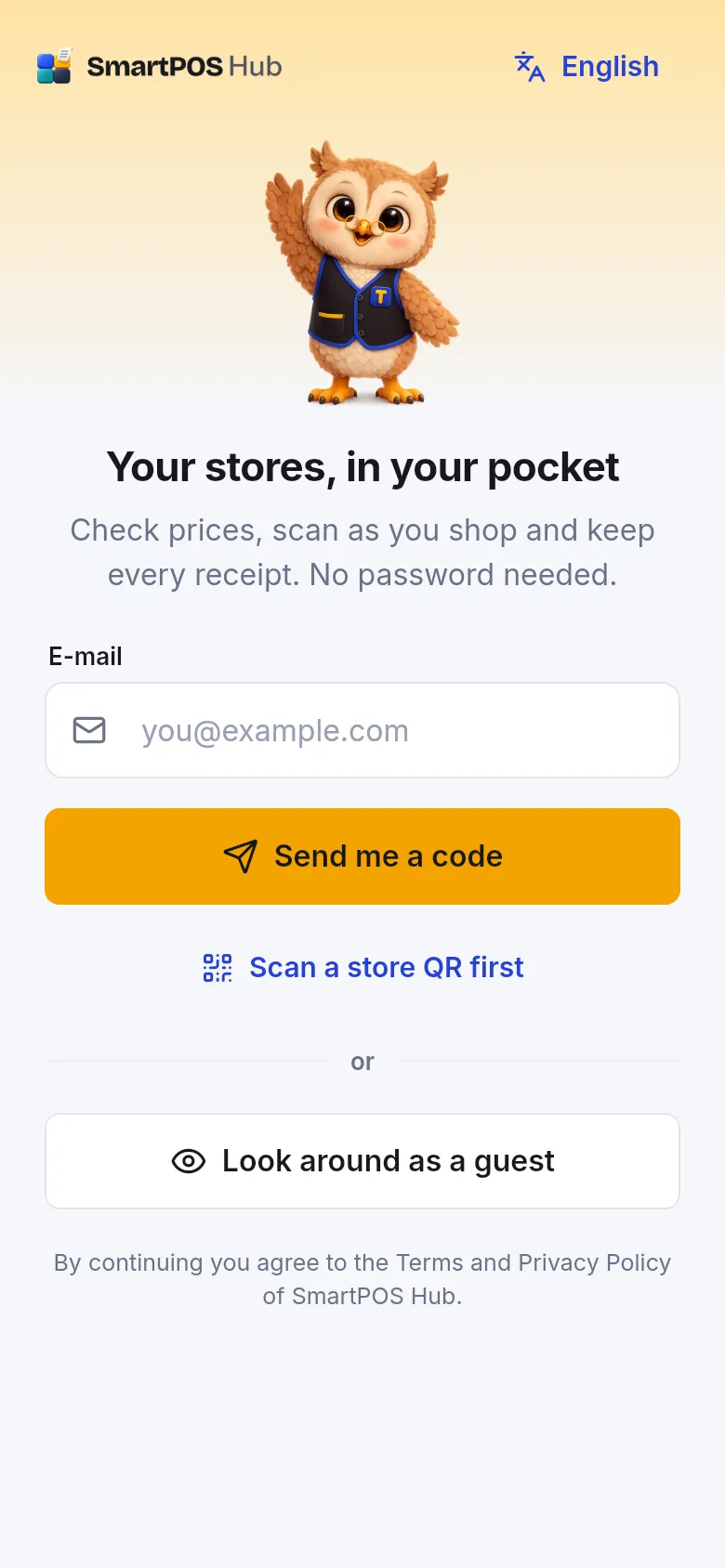
Section titled “How do I sign in?”- Open SmartPOS Shopper. On the Sign in screen, type your address in the E-mail field.
- Tap Send me a code. The screen changes to Check your e-mail and shows the address the code went to.
- Open the e-mail with the subject that starts with your code (”… is your sign-in code”) and read the 6 digits.
- Type the 6 digits in the boxes. The app signs you in by itself as soon as the sixth digit is in. (You can also tap Sign in.)
- If this is your first time, the app says Nice to meet you! Type Your name (at least 2 letters) and continue. Stores show this name on your receipts and bookings.
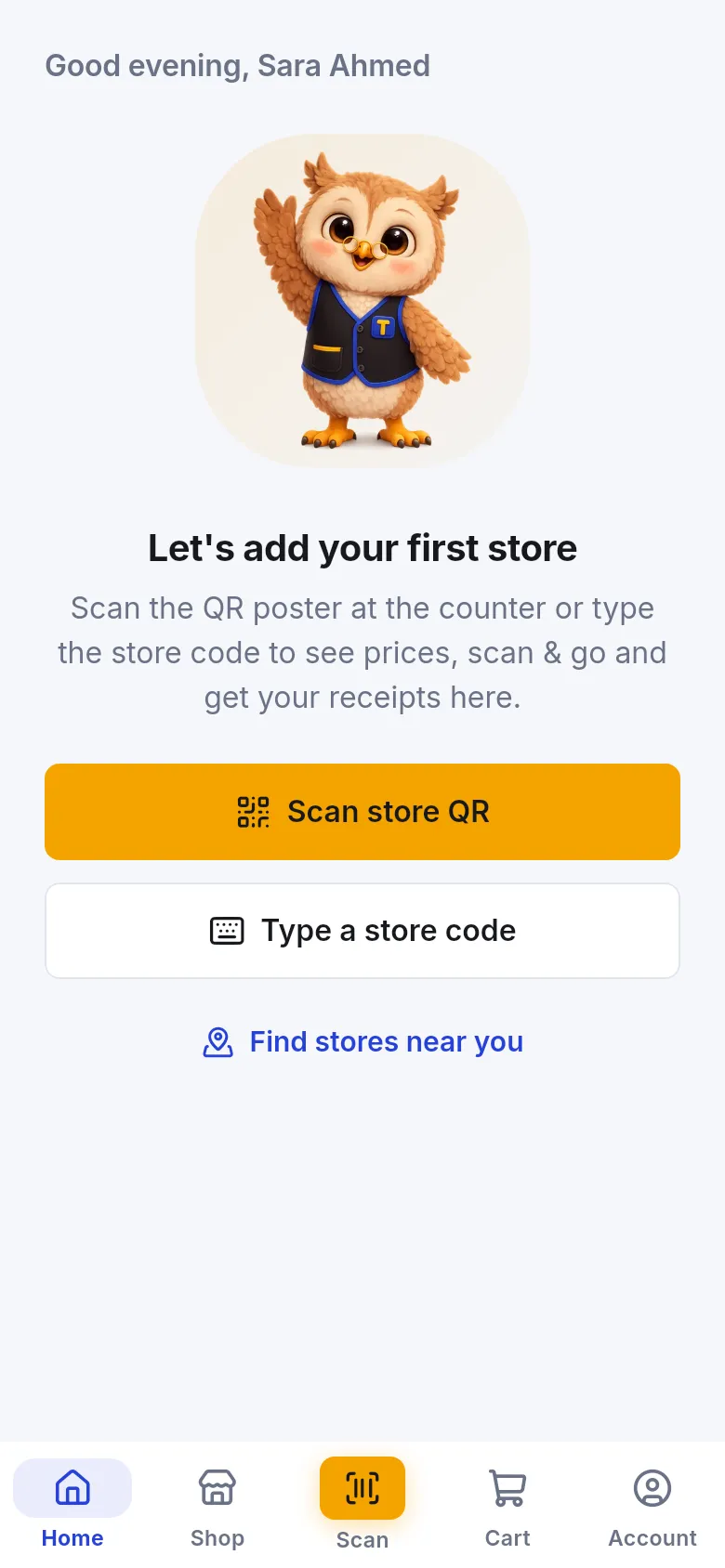
- You land on Home. If you haven’t joined a store yet, you see Let’s add your first store.
What do the messages mean?
Section titled “What do the messages mean?”| Message | What it means | What to do |
|---|---|---|
| Please enter a valid e-mail address. | The address is missing a part, such as the @ or the ending. | Check the spelling and try again. |
| That code isn’t right or has expired. Try again or ask for a new one. | A digit is wrong, or the code is older than 10 minutes, or it was already used. | Use the newest e-mail. Tap Send a new code if needed. |
| Send a new code in 45s | You just asked for a code. | Wait for the countdown, then tap Send a new code. |
| Too many tries. Please wait … min and ask for a new code. | Several wrong codes in a row. | Wait the minutes shown, then ask for a new code. |
| You were signed out on this phone. Please sign in again. | This phone’s session ended. | Sign in again; your stores come back. |
Can I join a store before I sign in?
Section titled “Can I join a store before I sign in?”Yes. On the sign-in screen tap Scan a store QR first and scan the store’s QR poster. The app says Store saved. You’ll join it when you sign in. Then sign in as usual and you join that store straight away. A store link from the store works the same way.
Can I just look around first?
Section titled “Can I just look around first?”Tap Look around as a guest. The guest home screen explains what the app does in four steps. As a guest you can’t join a store, check member prices, use Scan & Go or keep receipts. Tap Sign in with e-mail on the guest home screen when you are ready.
Signing in safely
Section titled “Signing in safely”- Never share your sign-in code with anyone, including people who say they are from a store. Store staff never need it.
- Sign-in codes are always sent, even if you switched other e-mails off: they keep your account safe.
- On a shared phone, sign out when you’re done: Account › Sign out. See Edit your profile.
Frequently asked questions
Section titled “Frequently asked questions”I didn't get the sign-in code. What should I do?
Check your spam or junk folder first, and make sure the e-mail address is spelled correctly. Wait a minute, then tap Send a new code. The button counts down from 60 seconds before you can ask again.
How long is the sign-in code valid?
The code is valid for 10 minutes and works only once. If it has expired, tap Send a new code and use the newest code you receive.
The app says "Too many tries". What now?
After several wrong codes the app blocks new tries for a few minutes to protect your account. The message tells you how many minutes to wait. Then ask for a new code and type it carefully.
Can I sign in on two phones?
Yes. Sign in with the same e-mail on each phone and you see the same stores and receipts. Each phone gets its own code when you sign in.
Can I change the e-mail I sign in with?
No. Your e-mail is how you sign in, so it can't be changed in the app. To use a different e-mail, sign in with the new address, which creates a new account, and join your stores again.
Why does the app ask for my name?
Stores show your name on your receipts and bookings, so they know who you are at the counter. You can change it later in Account › Edit profile.
What does "You were signed out on this phone" mean?
Your session on this phone ended, for example after you signed out elsewhere or deleted the account. Sign in again with your e-mail and a new code. Your stores and receipts come back.