

Book a table or an appointment in the app
With SmartPOS Shopper you can book a table at a restaurant or an appointment at a salon, clinic or other service store in a few taps, without calling. Pick a day and a free time, add a note, and the store gets your booking right away. This page shows how to book, what the statuses mean, and how to move or cancel.
Book a table or appointment
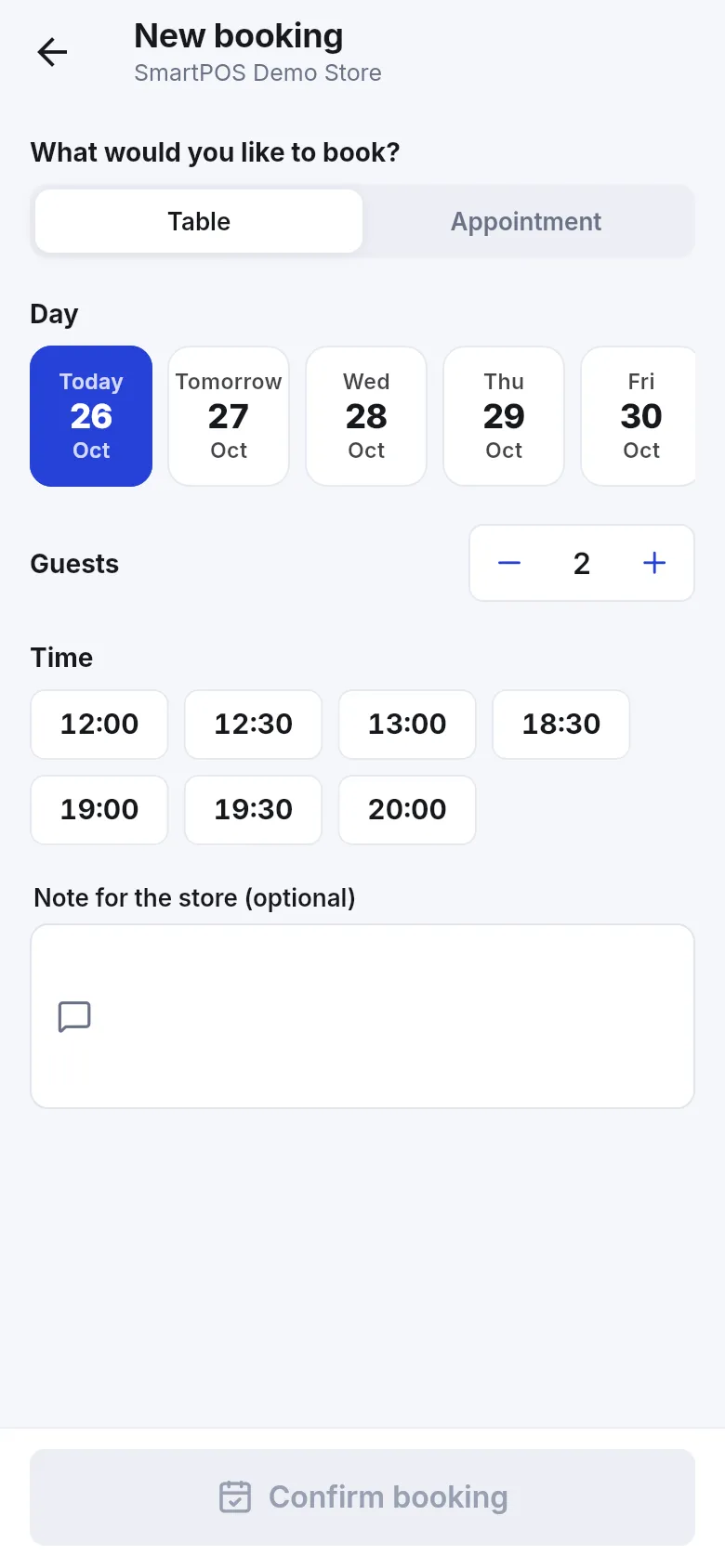
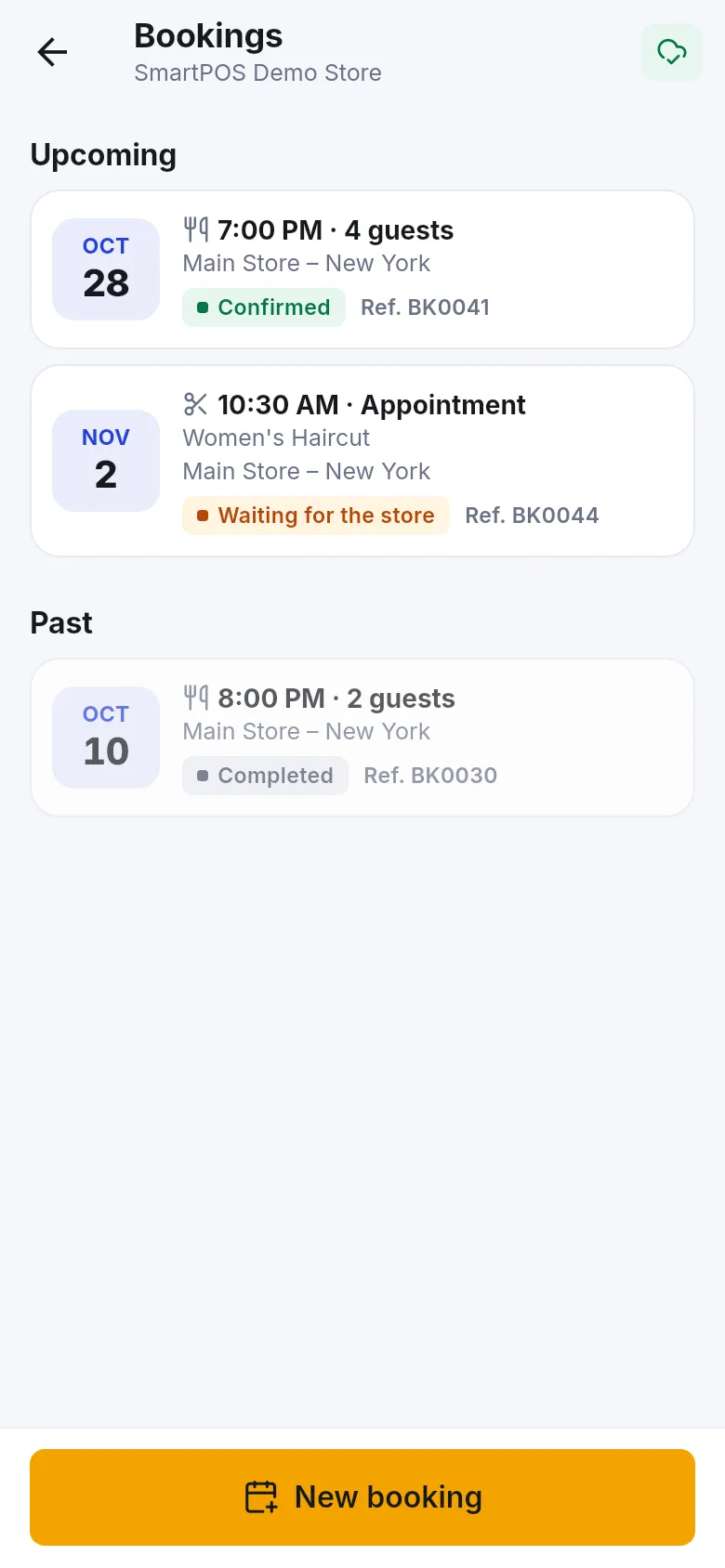
Section titled “Book a table or appointment”- Open the store on Home and tap Book — or open the store page and tap Bookings, then New booking.
- Under What would you like to book? choose Table or Appointment.
- Pick the Day (Today, Tomorrow or a later date).
- For a table, set Guests. For an appointment, choose at least one service under Services — the length in minutes is shown.
- Tap a free Time. If none are free, the app says “No free times on this day. Try another day.”
- Add a Note for the store (optional).
- Tap Confirm booking.
You then see You’re booked! See you soon. or Request sent. The store will confirm your booking.
Reserve a table at a restaurant
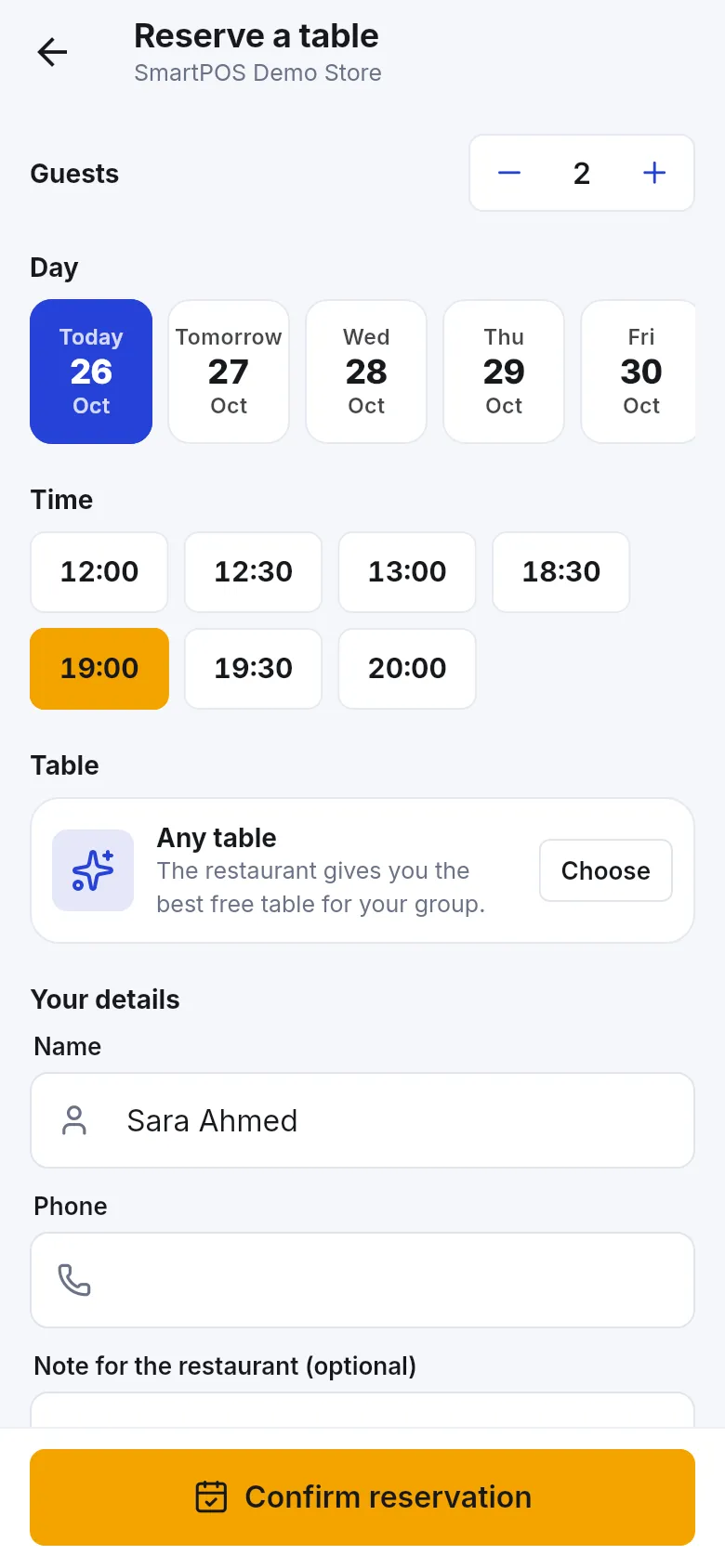
Section titled “Reserve a table at a restaurant”Restaurants can show their own Reserve a table screen with more choices.
- Tap Reserve a table (Pick a day and time) on the restaurant’s Home.
- Set Guests, pick the Day and a Time.
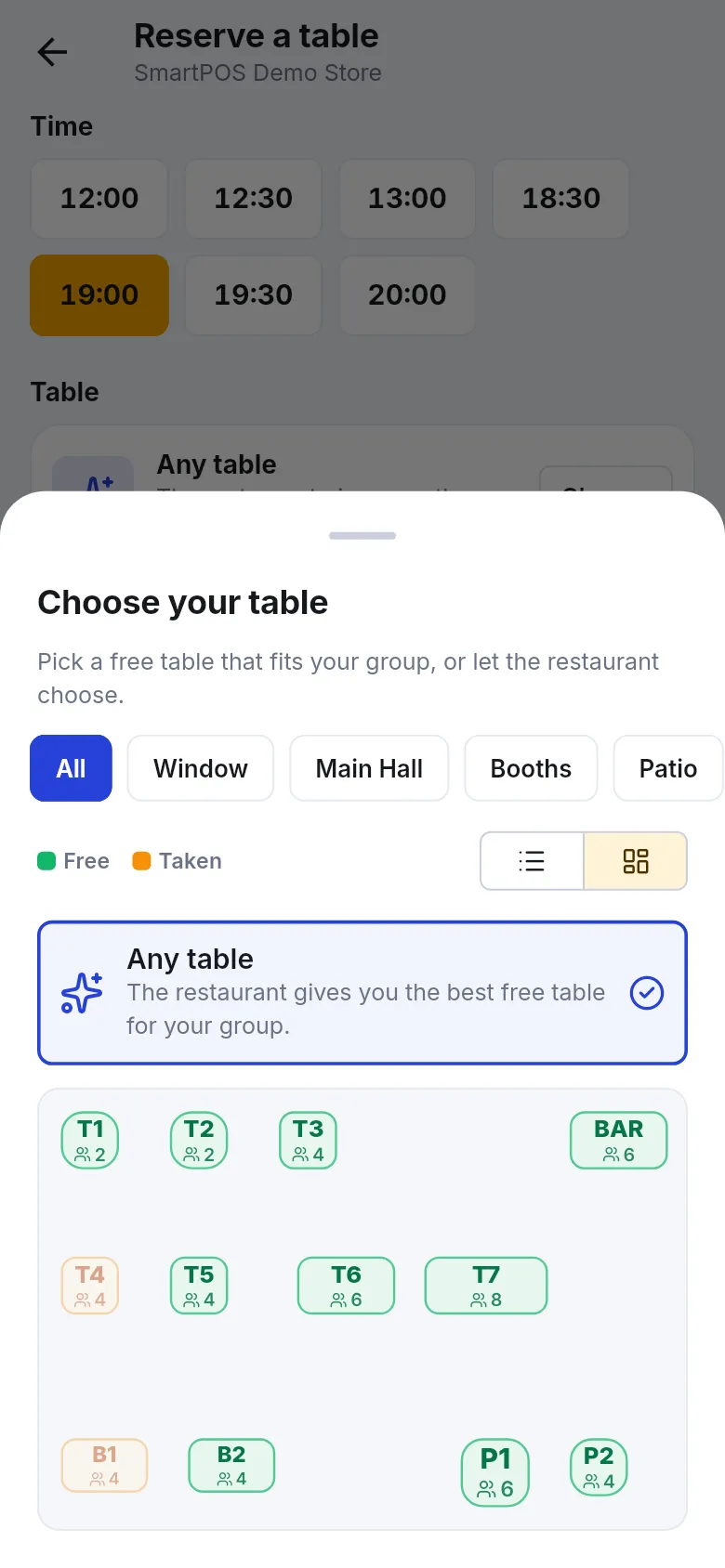
- Under Table, keep Any table — “The restaurant gives you the best free table for your group.” — or tap Choose to pick a free table from a list or Floor plan. Tables that are too small or taken can’t be picked.
- Check Your details (Name, Phone) and add a Note for the restaurant (optional) — occasion, high chair, allergies.
- Tap Confirm reservation.
The screen may also tell you the restaurant’s rules, for example We keep the table for 15 min, A deposit of … is due at the restaurant, or Free cancellation in the app up to … h before.
Book a service appointment
Section titled “Book a service appointment”- Tap Book a service (Free times, your stylist). Pick a service — its length and any deposit are shown.
- Under Who would you like? pick a person or Anyone available.
- Pick the Day and a Time, then add a Note for the store (optional).
- Tap Book followed by the time. You see Booked! See you then. or Sent. The store will confirm your appointment.
The confirmation tells you the change rule, for example “You can cancel or move it in the app up to 2 hours before.”
Check, move or cancel a booking
Section titled “Check, move or cancel a booking”Open My reservations (Tables you booked) from the restaurant’s Home. Upcoming bookings show Free cancellation until a time and a Cancel button. Tap Cancel, then confirm. Past bookings are listed under Past. If the screen says “To change or cancel, please call the restaurant.”, the app can’t cancel it any more.
Open My appointments, tap the appointment and use Change date or time → pick a new time → Move my booking, or Cancel booking → Yes, cancel. The store is told right away. After the change window the app shows “This booking can’t be changed in the app any more. Please call the store.”
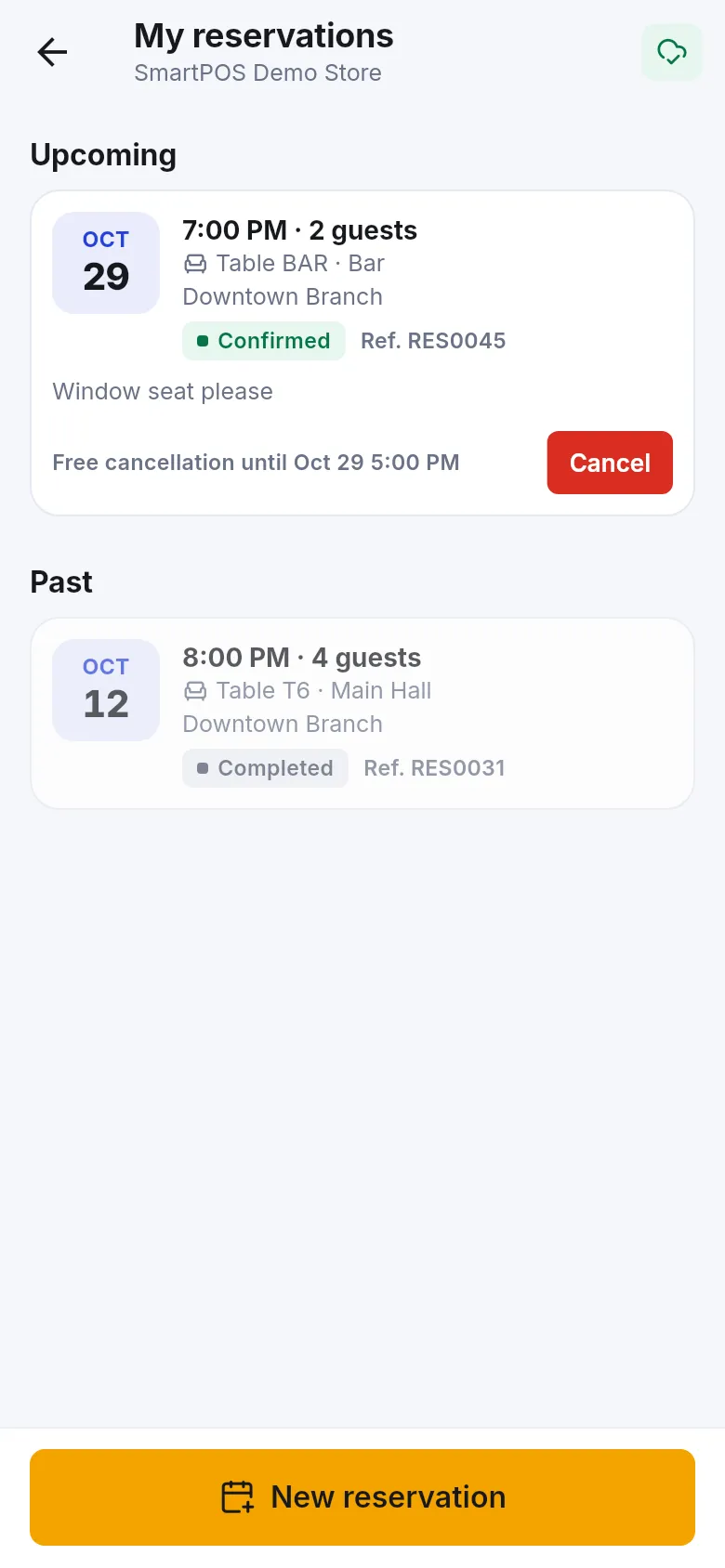
What the booking statuses mean
Section titled “What the booking statuses mean”| Status | Meaning |
|---|---|
| Confirmed | Your booking is set. |
| Waiting for the store / Waiting for confirmation | The store still has to accept it. |
| Checked in / Seated | You arrived and the store checked you in. |
| Completed | The visit is over. |
| Cancelled | You or the store cancelled it. |
| Missed | You didn’t come. |
- Turn on notifications so you hear when a booking is confirmed or cancelled — see notifications.
- If the store asks you to pay to confirm, the booking is held only for a short time. See pay to confirm a booking.
- Running late? Message the store or call it from the store page.
Frequently asked questions
Section titled “Frequently asked questions”Why can't I see a Book button for my store?
The store doesn't take bookings in the app. Booking tiles such as Book, Reserve a table or Book a service only appear at stores that switched them on. Call the store instead, using the phone button on its store page.
What is the difference between Confirmed and Waiting for the store?
Confirmed means your table or appointment is booked. Waiting for the store means you sent a request and the store still has to accept it; you get a notification when it does. Some stores confirm at once, others check every request first.
Can I choose my own table?
At restaurants that allow it, yes. After you pick a time, tap Choose under Table to see the free tables on a list or floor plan. Or keep Any table and the restaurant gives you the best free table for your group.
How do I cancel a reservation or appointment?
Open the booking under My reservations or My appointments and tap Cancel or Cancel booking. You can cancel in the app only until the time the store allows, shown as Free cancellation until or You can cancel or move it until. After that, call the store.
Can I move an appointment to another time?
Yes, while the store's change window is open. Open the appointment, tap Change date or time, pick a new free time and tap Move my booking. If the app says This booking can't be changed in the app any more, call the store.
Do I have to pay a deposit?
Only if the store asks for one. Some restaurants note a deposit that is paid at the restaurant. Other stores ask you to pay in the app to confirm the booking; then you see Pay to confirm with a timer. See the page about paying to confirm a booking.
The time I picked was just taken. What now?
Someone booked it a moment before you. The app tells you so and keeps your other choices; pick another free time and confirm again.