

Turn on notifications and use the inbox
SmartPOS Shopper can send notifications to your phone when a store replies to you, when your order or booking changes, when a receipt arrives and when a store approves your membership. This page shows how to turn on notifications, what to do if they are blocked, and how to use the Notifications inbox inside the app.
Turn on phone notifications
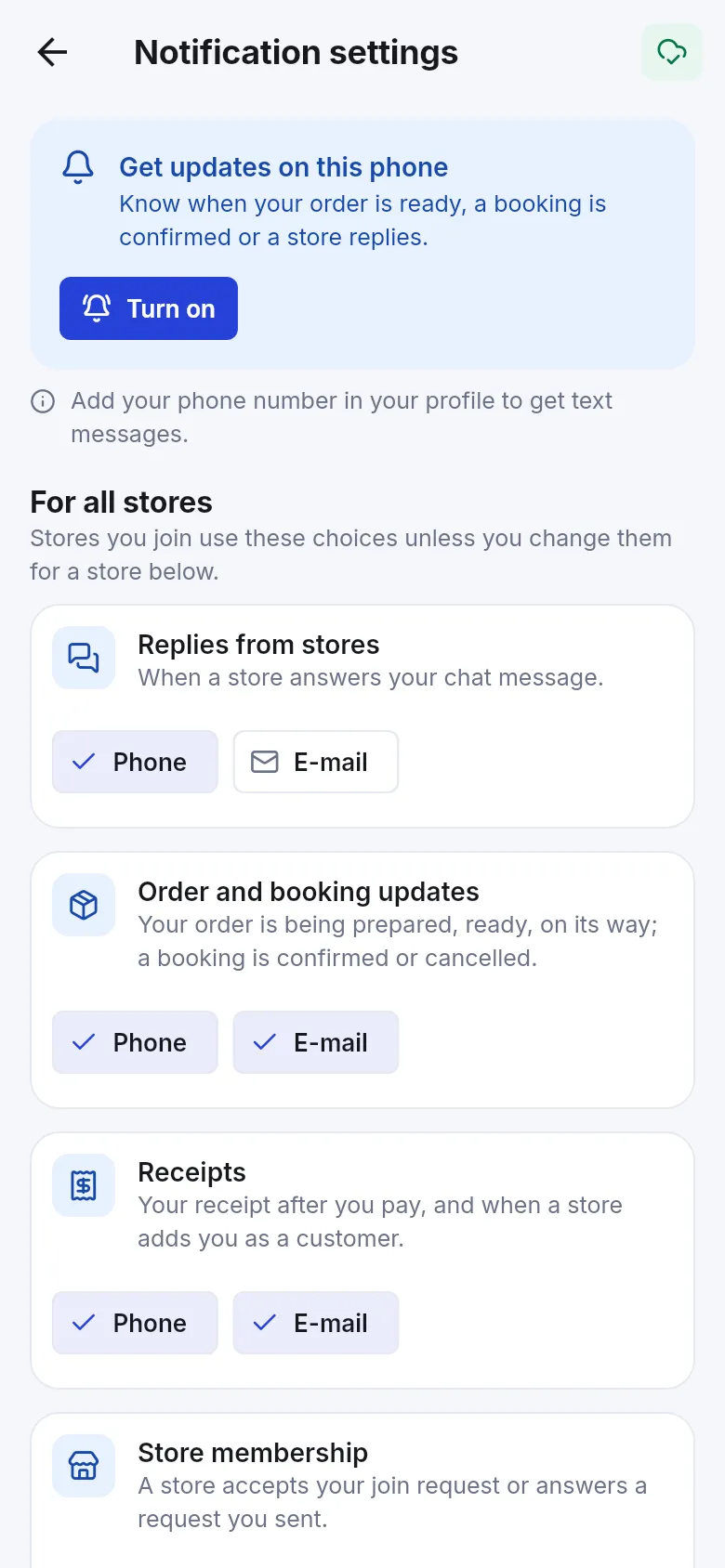
Section titled “Turn on phone notifications”The app never asks on the first launch. A few seconds after you sign in, it shows one card: Get updates on this phone — “Know when your order is ready, a booking is confirmed or a store replies.”
- Tap Turn on.
- Your phone asks whether SmartPOS Shopper may send notifications. Tap Allow.
- When you open Account › Notification settings, the card now says Notifications are on — “This phone shows store updates even when the app is closed.”
If you tapped Not now, the app won’t ask again by itself. Turn it on any time from Account › Notification settings → Turn on.
If notifications are blocked
Section titled “If notifications are blocked”When the card says Notifications are blocked, your phone has turned them off for the app.
- Tap Open phone settings.
- Find Notifications and switch them on for SmartPOS Shopper.
- Go back to the app. The card changes to Notifications are on.
Use the Notifications inbox
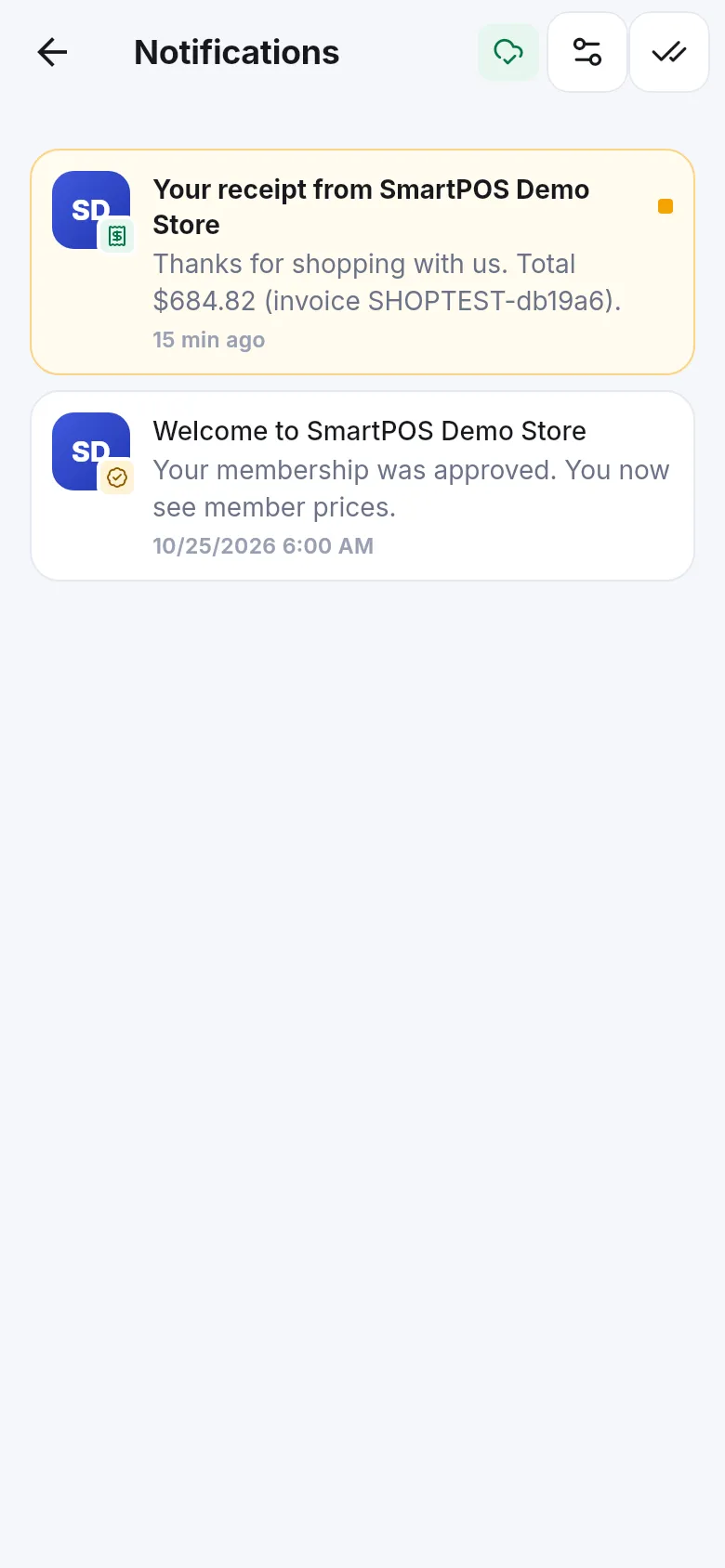
Section titled “Use the Notifications inbox”Every notice is also kept in the app, even if you turned its phone alert off.
- Tap the bell on the store’s Home (a number shows unread notices), or Account › Notifications.
- Unread notices are highlighted. Tap one to open what it is about — for example the receipt, the order or the chat.
- Tap Mark all as read to clear the badge. With nothing unread you see All caught up; with no notices at all, All quiet.
- The gear button opens Notification settings.
What you get notified about
Section titled “What you get notified about”| Type | Examples |
|---|---|
| Replies from stores | A store answered your chat message. |
| Order and booking updates | Your order is being prepared, ready, on the way, completed, cancelled or refunded; a booking is confirmed or cancelled; a booking payment was approved. |
| Receipts | Your receipt after you pay, and when a store adds you as a customer. |
| Store membership | A store accepted your join request or answered a request you sent. |
There is no advertising notification type. “News and offers by e-mail” is a separate e-mail switch per store (see the store page). Sign-in codes are always sent by e-mail.
Frequently asked questions
Section titled “Frequently asked questions”What will the app notify me about?
Four things. Replies from stores to your chats, order and booking updates such as ready, on the way or confirmed, your receipts after you pay, and store membership news such as a store approving your join request. There are no advertising pushes.
I tapped Not now. How do I turn notifications on later?
Open Account, tap Notification settings and use the card at the top. If it says Notifications are blocked, tap Open phone settings and allow notifications for SmartPOS Shopper there.
Why do my notifications arrive late?
Your phone may hold back alerts to save battery, or instant alerts may not be on for your phone yet. In that case the app checks for updates every few minutes while you are signed in. Turning off battery saving for the app helps.
Will I still get my sign-in code if I turn notifications off?
Yes. Sign-in codes always go to your e-mail because they keep your account safe. Your notification choices never block them.
Do muted notifications disappear?
No. Everything also stays in the Notifications inbox inside the app, even if you turned a phone alert, e-mail or text message off, or muted a store.
How do I clear the unread badge?
Open Notifications and tap a notice to read it, or tap Mark all as read at the top. When everything is read the app says All caught up.