

Message a store from the SmartPOS Shopper app
You can message a store from the SmartPOS Shopper app to ask about a product, your order, a receipt or opening hours. You start the chat, the store’s team answers in the same conversation, and you get a notification when they reply. This page shows how to send messages and photos, attach an order, and block a store.
Before you start
Section titled “Before you start”- You need to have joined the store. On a store you haven’t joined, the chat says Join this store to send it messages. with a Join button. See join a store.
- The store must have chat switched on. If not, you see Messages are not available for this store.
- Only you can start a chat — a store can’t message you first.
Start a chat with a store
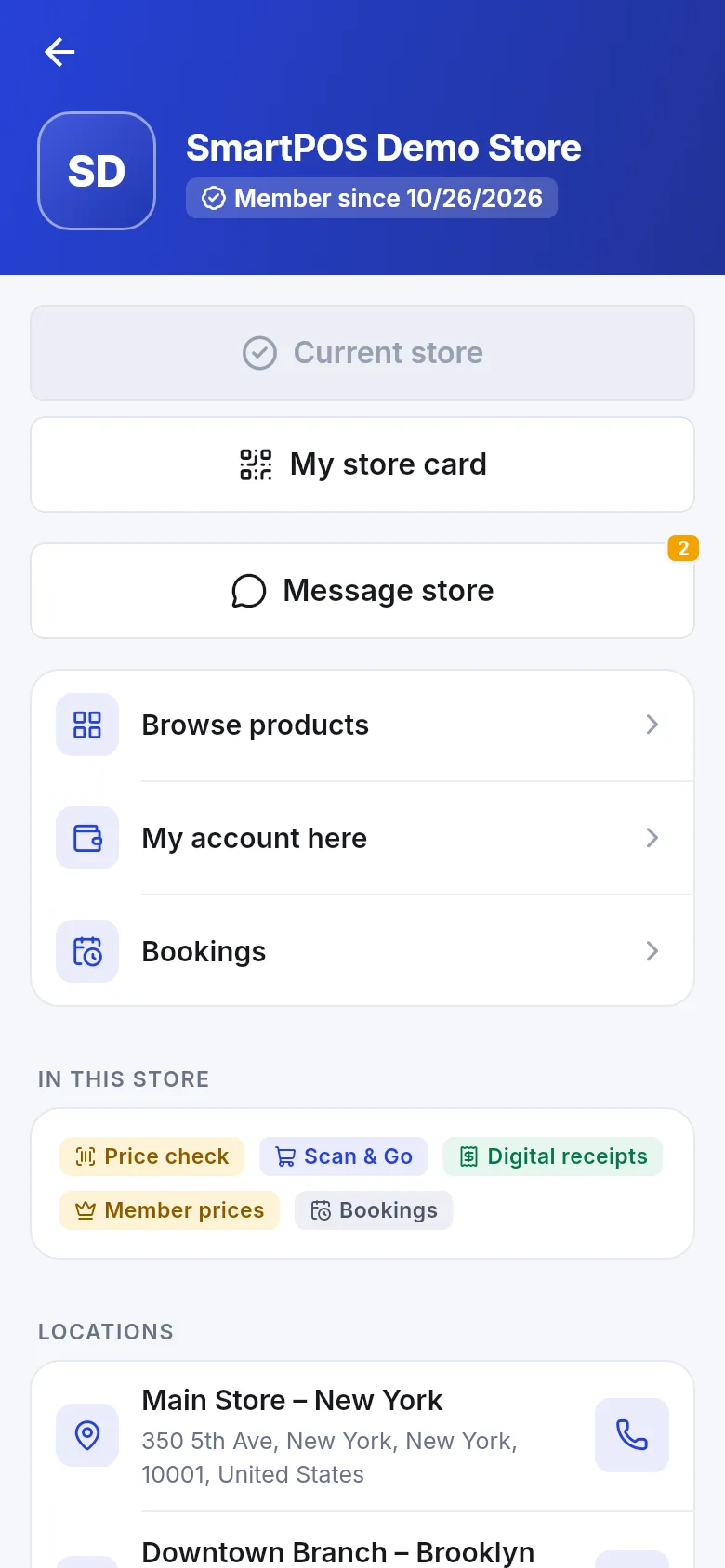
Section titled “Start a chat with a store”- Open the store page (tap the store name on Home, or Account › My stores).
- Tap Message store. A number on the button shows unread replies.
- A new chat shows Say hello to the store — “Ask about products, opening hours or your order. The team answers here.”
- Type in Write a message… and tap Send.
Ask about a product, order or receipt
Section titled “Ask about a product, order or receipt”You can start from the thing you are asking about:
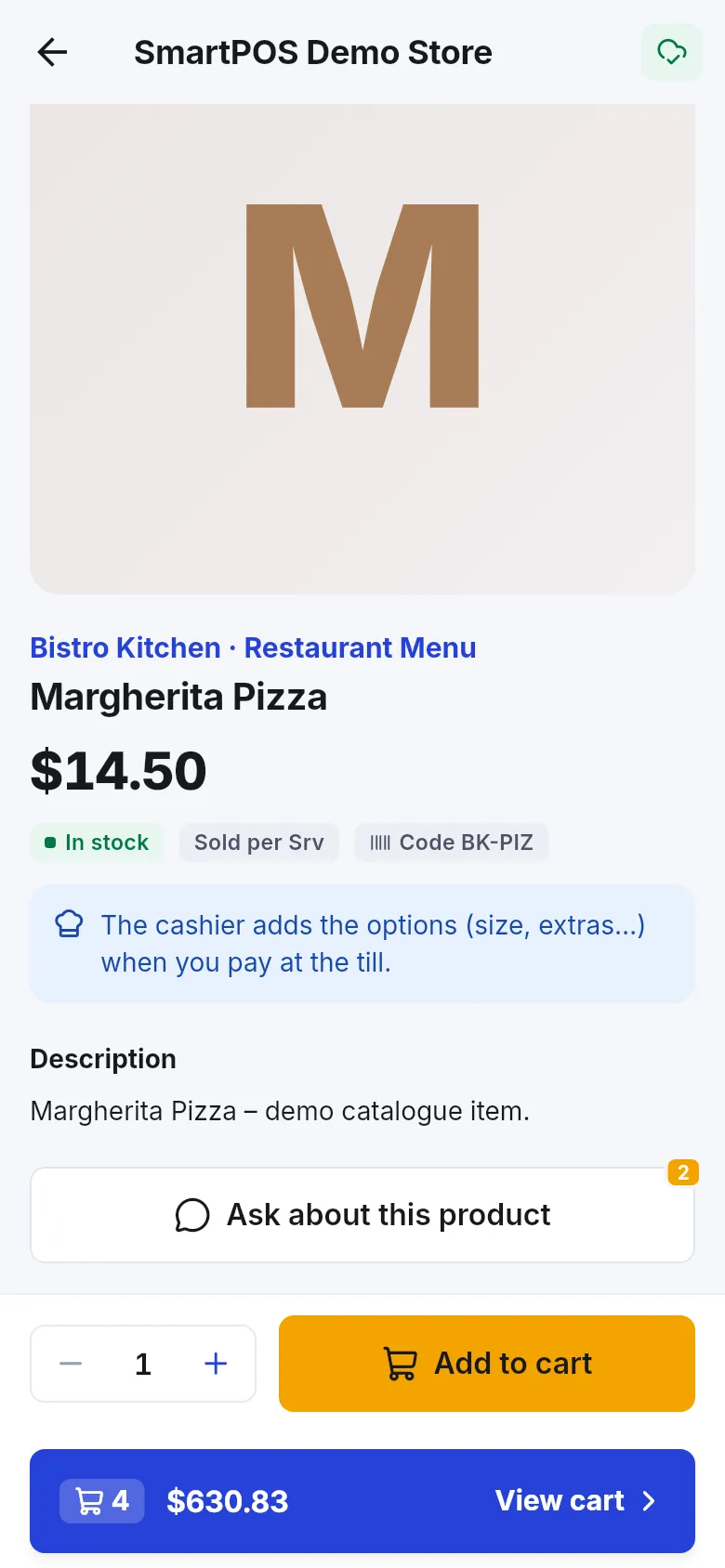
- On a product page, tap Ask about this product.
- On an order, tap Ask about this order.
- On a receipt, tap Ask about this receipt.
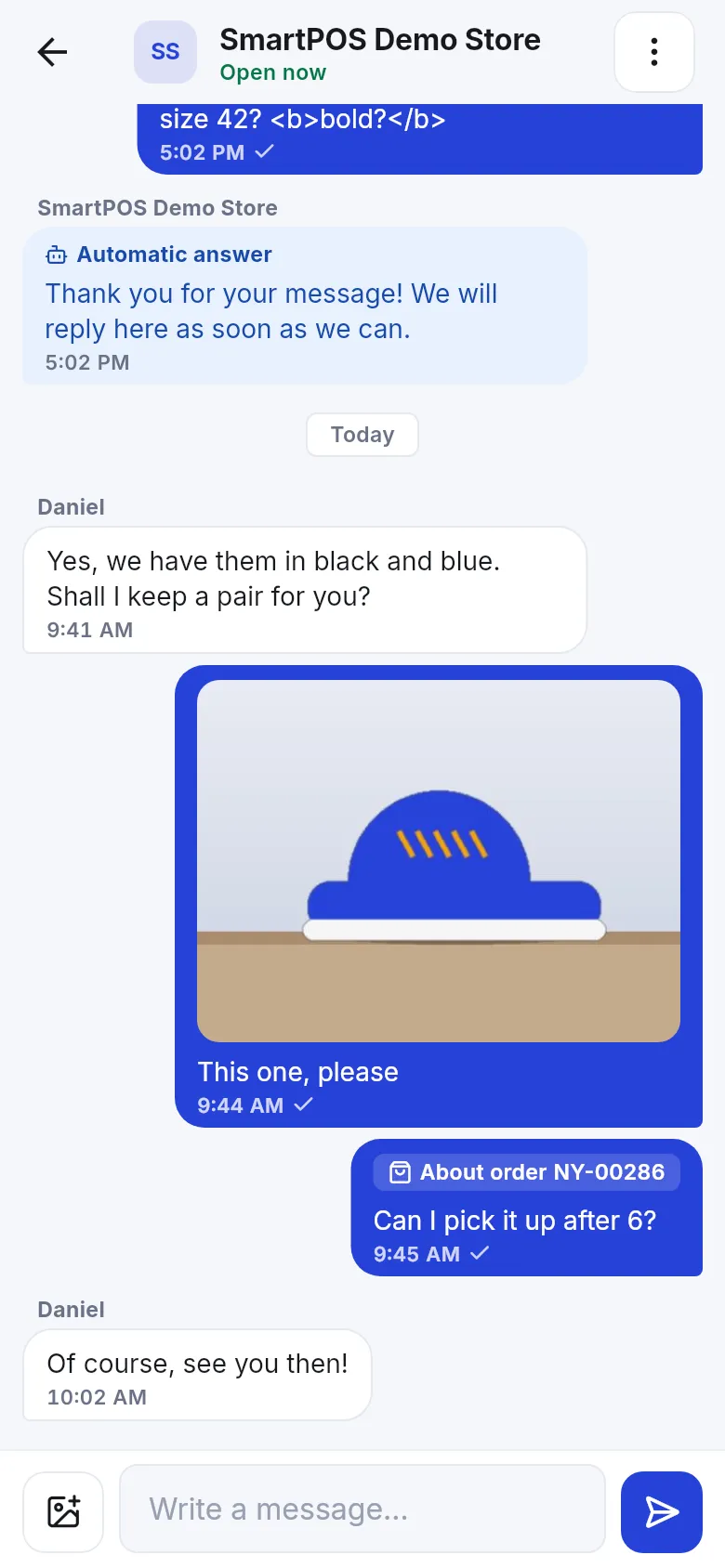
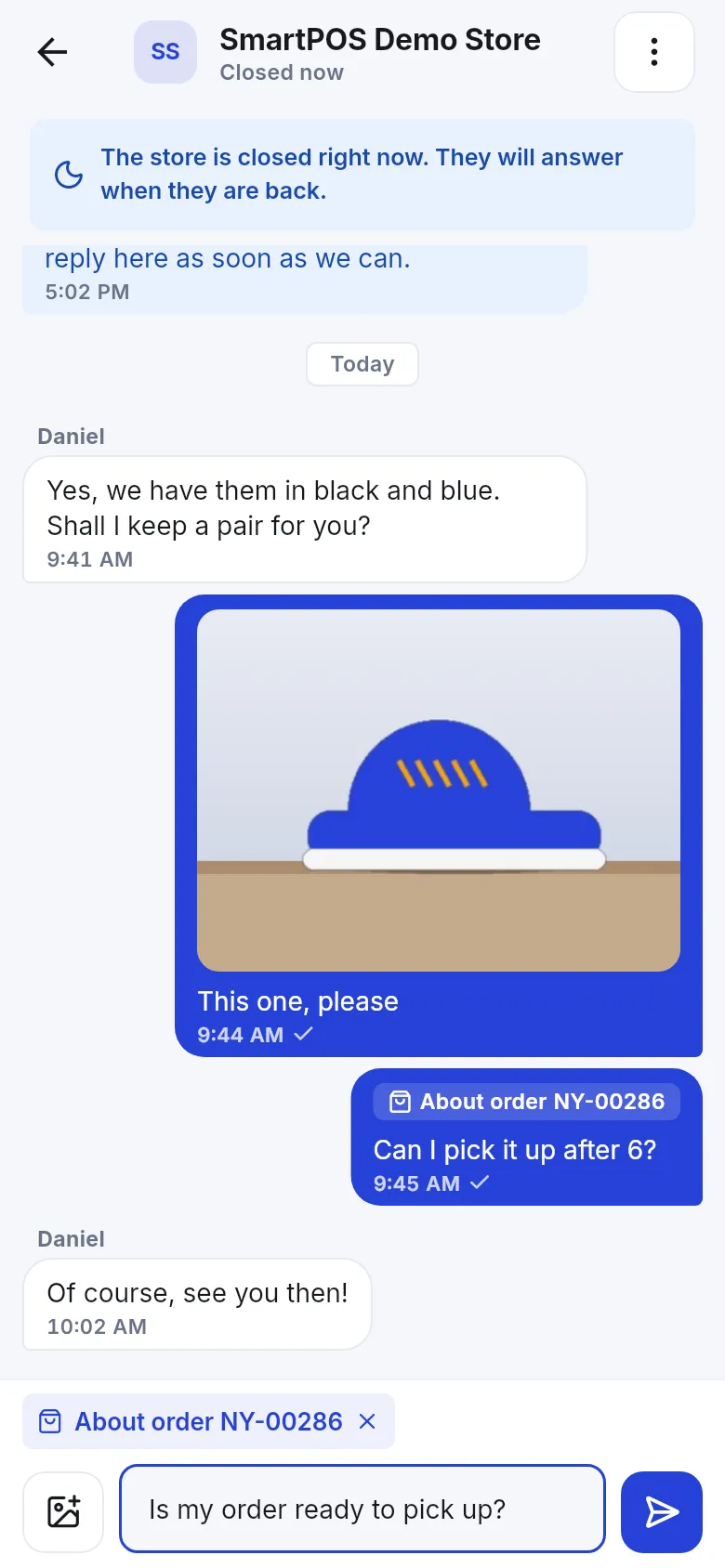
The chat opens with a chip such as About order NY-00286 above the message box, so the store knows what you mean. Tap the × (Don’t attach) to remove it. Your message then shows the “About …” label for the store.
Send a photo
Section titled “Send a photo”- Tap the photo button next to the message box (Add a photo).
- Choose Take a photo or Choose from gallery.
- Add text if you like and tap Send. Tap Remove photo to take it off before sending.
Use a JPG, PNG or WebP photo. If a photo is too big or of another type, the app says “This photo can’t be sent. Use a JPG, PNG or WebP photo up to 5 MB.” Some stores don’t accept photos: “This store doesn’t accept photos.”
How replies work
Section titled “How replies work”- Not instant. New replies appear when you open the chat, pull to refresh or come back to the app, and you get a notification for a reply (see notifications).
- Automatic answer. A greeting or “we’re closed” note sent by the store’s settings is labeled Automatic answer.
- Store closed. At the top you may see “The store is closed right now. They will answer when they are back.” or Open now.
- Who answered. Some stores show the first name of the team member; others show the store name.
- Read marks. A tick under your message shows it was sent; the store sees when you have read their replies.
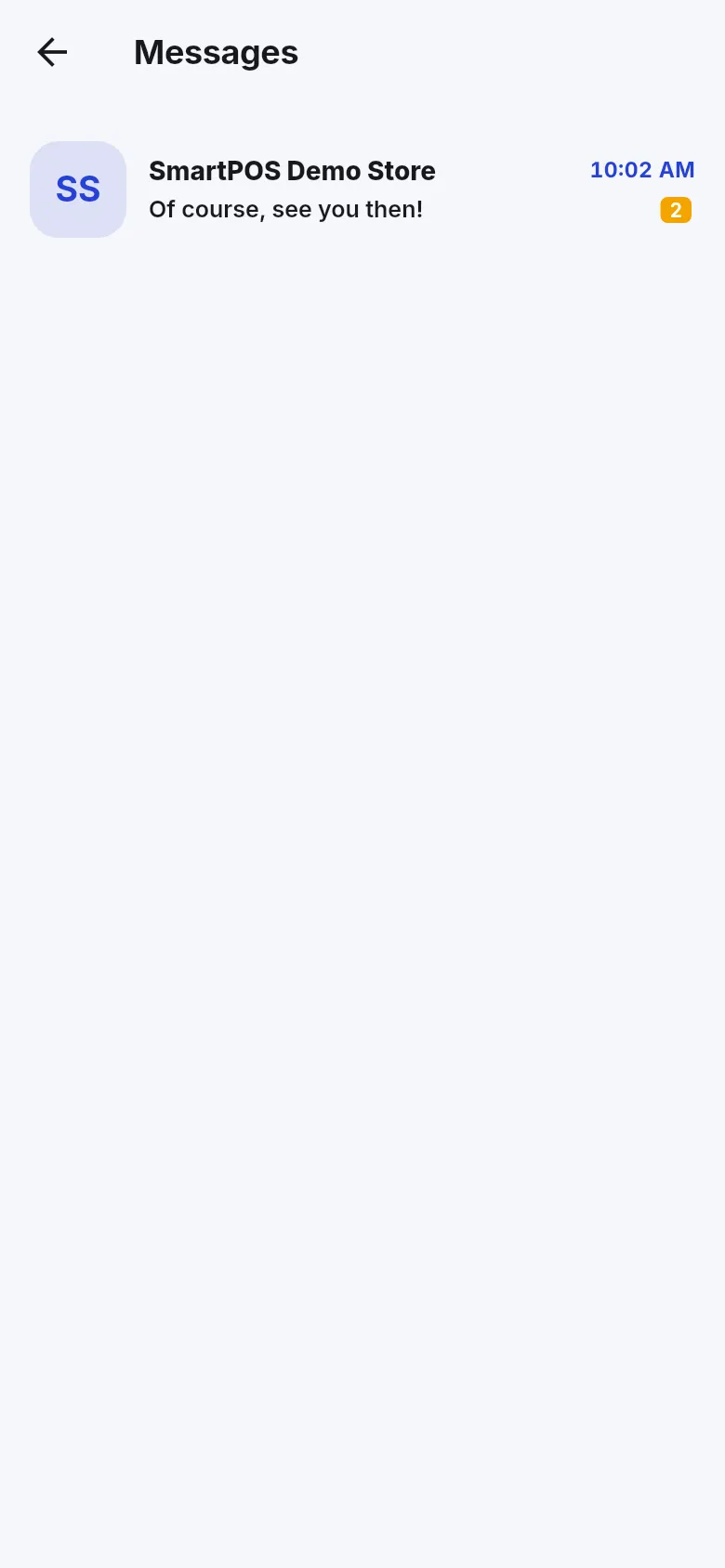
All your chats are listed in Account › Messages (Chats with your stores), newest first, with unread counts.
Block or unblock a store
Section titled “Block or unblock a store”- In the chat, tap the More menu (three dots).
- Tap Block this store and confirm. The store can no longer answer you there.
- To undo it, tap Unblock — or simply write to the store again, which unblocks it.
A store can also stop you from writing. Then the chat says You can’t message this store.
Problems sending
Section titled “Problems sending”| You see | Why | What to do |
|---|---|---|
| Not sent · tap to retry | No connection. | Tap the message to retry, or Delete this message. |
| “You are sending messages too fast…” | There’s a short limit on how fast you can send. | Wait the seconds shown and send again. |
| “This store can’t receive more messages right now.” | The store reached its message limit. | Try later or call the store. |
| “Your message is too long” | Messages have a maximum length. | Split it into two messages. |
Frequently asked questions
Section titled “Frequently asked questions”Can a store message me first?
No. Only you can start a chat with a store. Once you send your first message, the store's team can answer you in the same conversation, and you get their replies in the app.
Is the chat instant like a messaging app?
Not quite. Replies appear when you open or refresh the chat, and the app sends you a notification when a store answers. Stores answer when their team is free, so it can take a while, especially outside opening hours.
Why did I get an Automatic answer?
Many stores send a greeting to new chats or a short note when they are closed. Messages marked Automatic answer were sent by the store's settings, not typed by a person. A team member answers you later in the same chat.
Can I send photos to a store?
Yes, if the store accepts photos. Tap the photo button, then take a photo or choose one from your gallery. Use a JPG, PNG or WebP photo; the app tells you the size limit if a photo is too large. Some stores turn photos off.
Why does it say Join this store to send it messages?
You can read a listed store's page before joining, but you have to join a store before you can write to it. Tap Join; at stores that approve members first you can already chat while you wait.
How do I stop a store from replying to me?
Open the chat, tap the menu with three dots and choose Block this store. The store can no longer answer you there. You can still write to the store, and writing again unblocks it. You can also tap Unblock at any time.
What does Not sent tap to retry mean?
The message did not reach the store, usually because there was no connection. Tap the message to send it again, or delete the unsent message.