

Browse and search a store's products
The Shop tab in SmartPOS Shopper lets you browse and search a store’s products from your phone: banners and offers, categories, a full product list with search, sorting and filters, and a product page with photos, prices and stock. This page shows you how to find exactly what you want in a store you joined.
Before you start
Section titled “Before you start”- Join the store first. Guests can look around, but member prices, carts and orders need an account.
- If you belong to several stores, check the store name at the top of the screen. Tap it to switch store.
- The products, photos and prices you see are set by the store. Each store decides what it puts in the app.
What’s on the Shop tab?
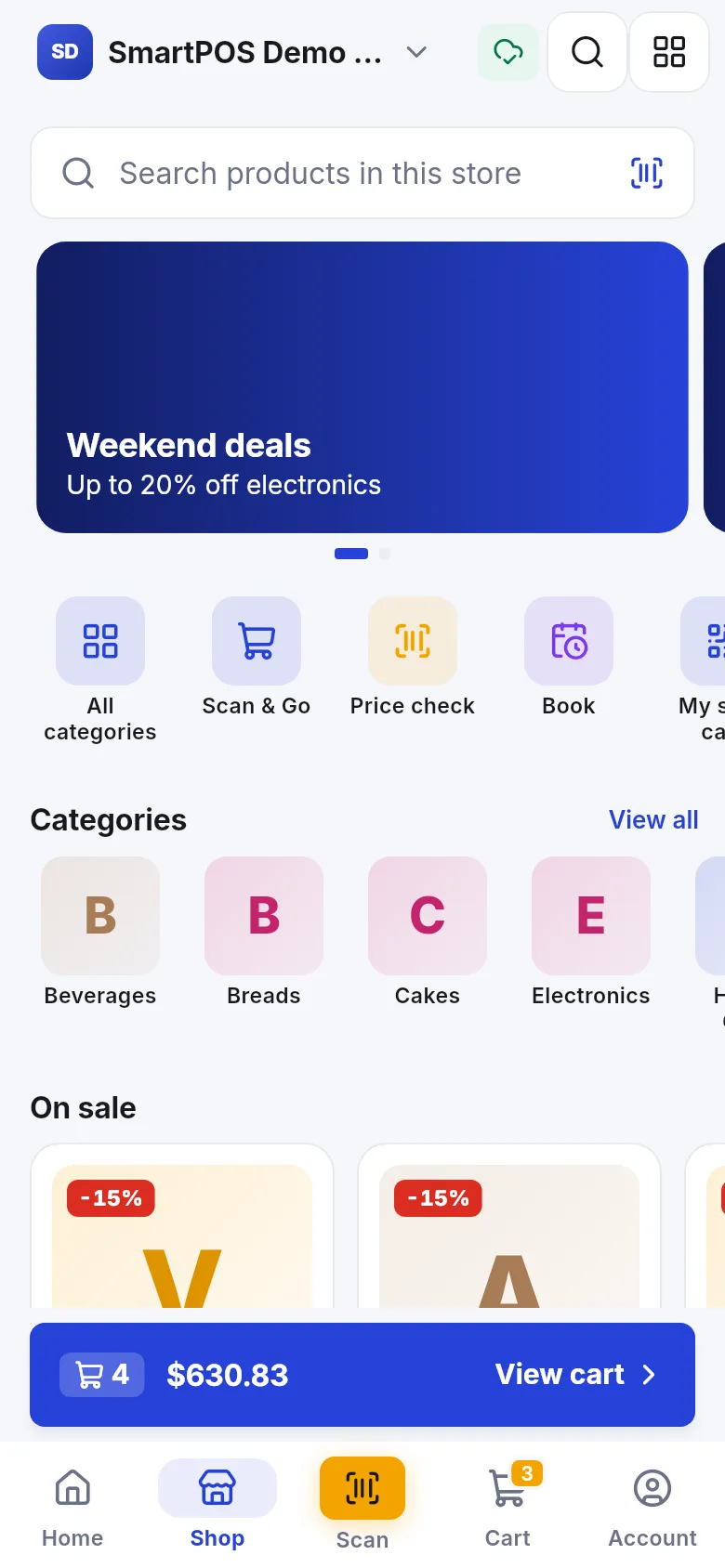
Section titled “What’s on the Shop tab?”Tap Shop in the bottom bar. The Shop tab opens with the store’s own front page. Depending on what the store set up, you see:
- Banners at the top, for example weekend deals or new arrivals. Tap a banner to open the category, product or page it points to.
- The Quick menu: shortcuts such as All categories, Scan & Go, Price check and Book.
- Categories, with View all to open the full list.
- On sale and new products, shown as short rows you can swipe.
- All products, the full list of everything the store sells in the app.
How do I find a product by category?
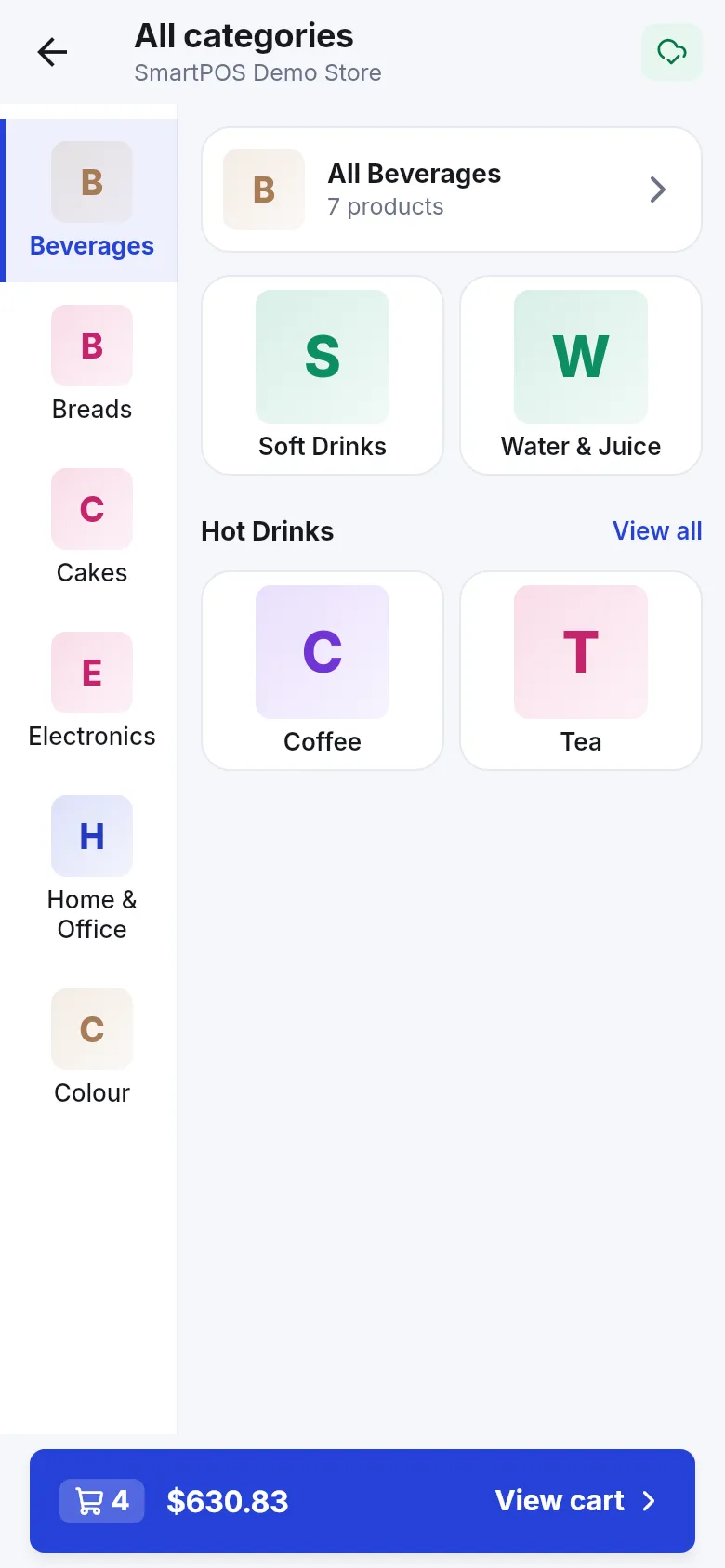
Section titled “How do I find a product by category?”- On the Shop tab, tap View all next to Categories (or tap All categories in the Quick menu).
- Tap a main category on the left side, for example Beverages.
- Tap a sub-category tile, or tap All followed by the category name to see every product in it.
- Tap a product to open its page.
How do I search for a product?
Section titled “How do I search for a product?”- Tap the search field at the top of the Home or Shop tab (Search products in this store), or open the product list.
- Type part of the name, the brand, or the barcode number. The list updates as you type.
- Prefer your camera? Tap the scan button next to the search field and point it at the barcode.
- Nothing found? You see No products found. Try another word, or scan the barcode on the shelf.
How do I sort and filter the product list?
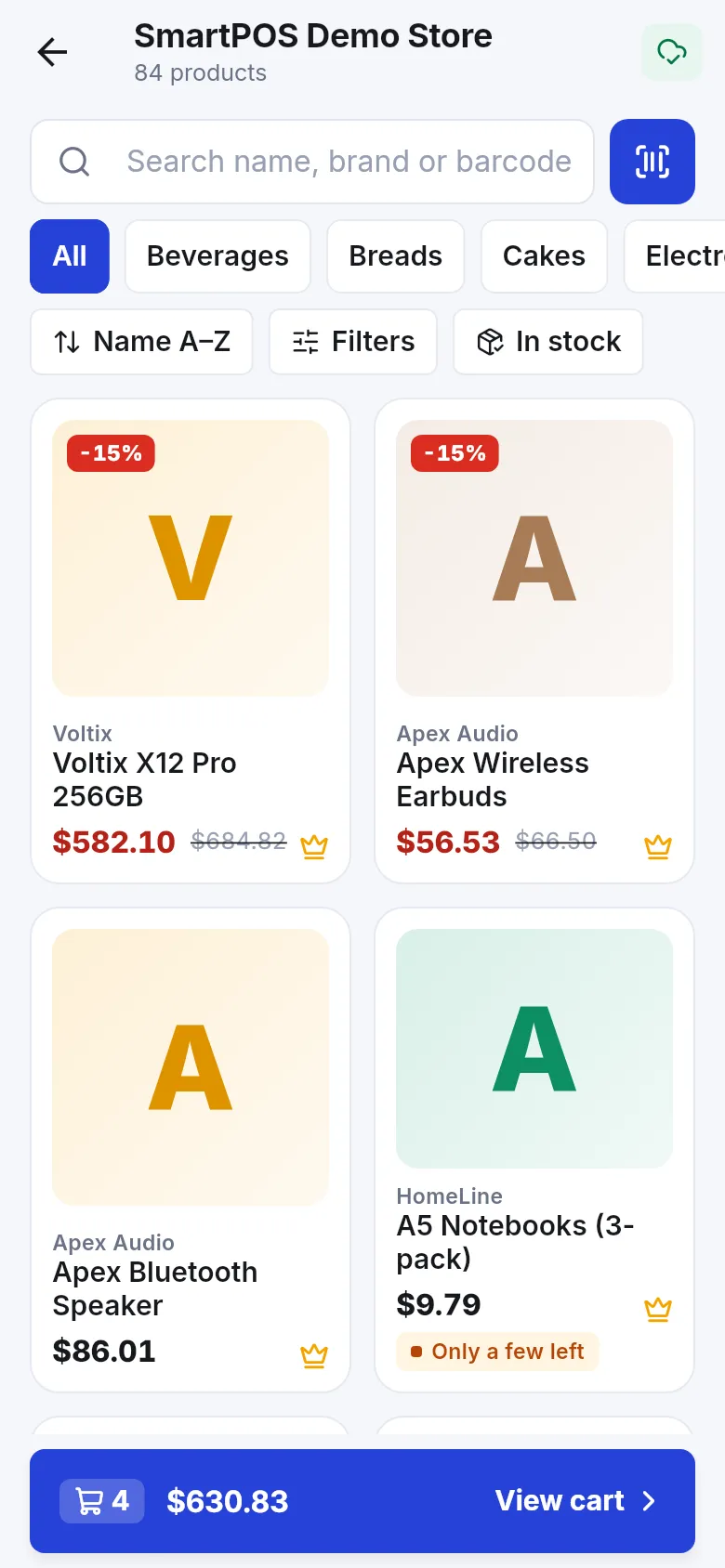
Section titled “How do I sort and filter the product list?”The product list has a row of category chips and three buttons under the search field.
| Button | What it does |
|---|---|
| Sort by (shows the current choice, such as Name A–Z) | Choose Name A–Z, Price: low to high, Price: high to low or Newest. |
| Filters | Pick Brands and a Price range (Min and Max), then tap Show results. The button shows how many filters are on, for example Filters (2). |
| In stock | Hides products that are out of stock at your location. |
To start over, open Filters and tap Clear. If you see Nothing matches these filters, remove one filter to see more products.
What does the product page show?
Section titled “What does the product page show?”Tap any product card to open its page.
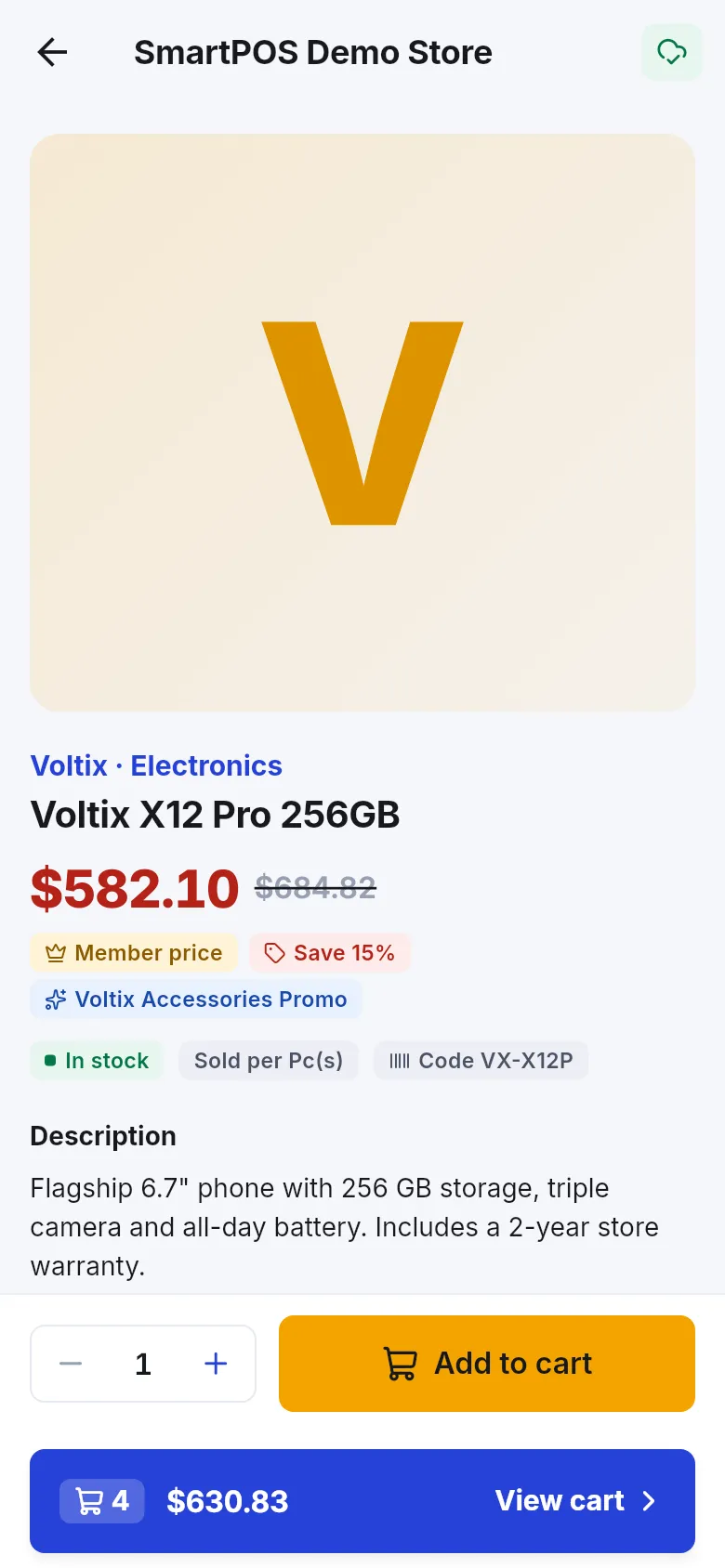
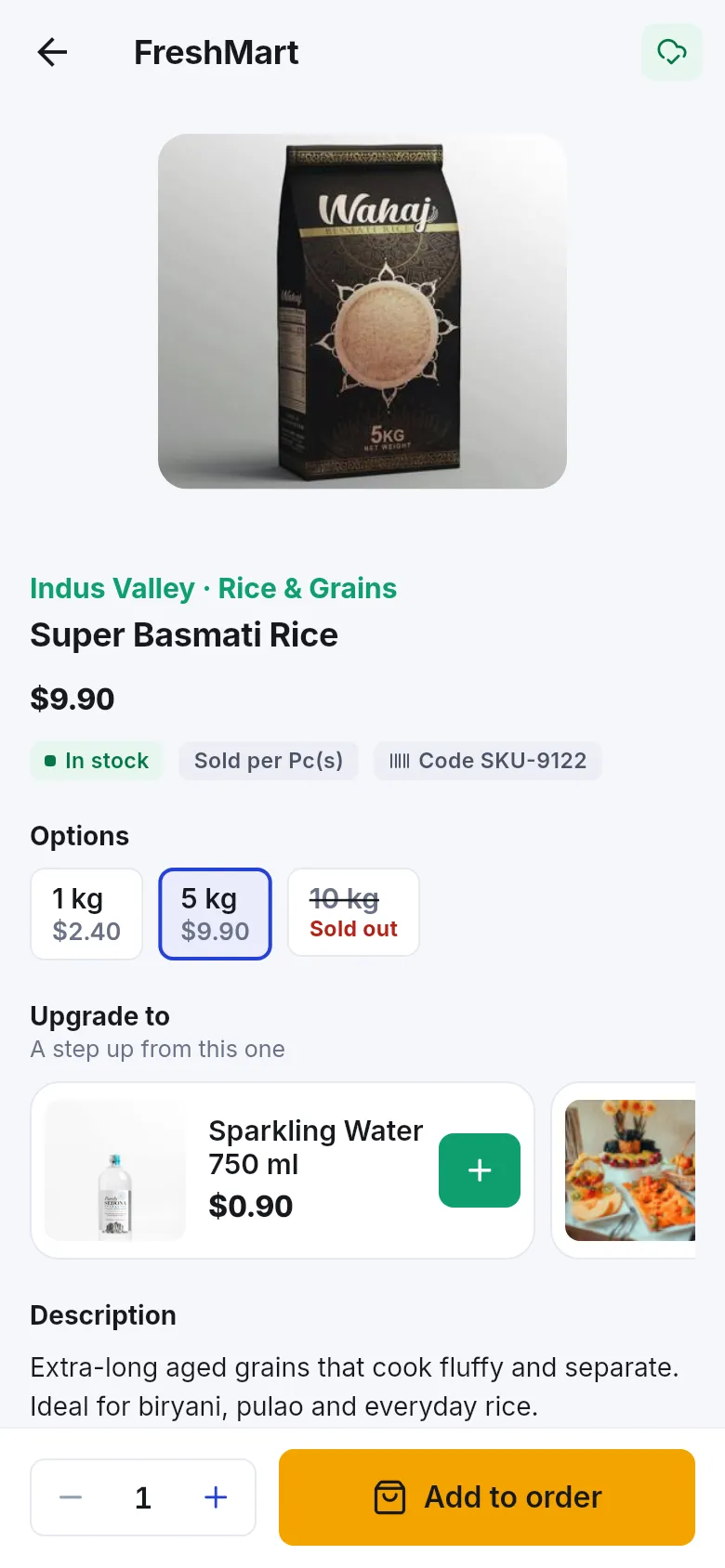
From top to bottom you find:
- Photos. Swipe to see more photos, or tap the small pictures under the main photo. When you choose a variant (a color, size or pack), the photo changes to that variant when the store added one.
- Brand and category, the product name and the price. A crossed-out price means you get a discount; Member price and Save followed by a percentage show your saving. An offer name (for example a promotion) can appear under the price.
- Stock badges: In stock, Only a few left or Out of stock at your location, plus how the product is sold (for example per piece or per kilogram) and its product Code.
- Counter notes where they apply: Weighed at the counter (the final price depends on the weight) and Age-restricted: the cashier checks your ID.
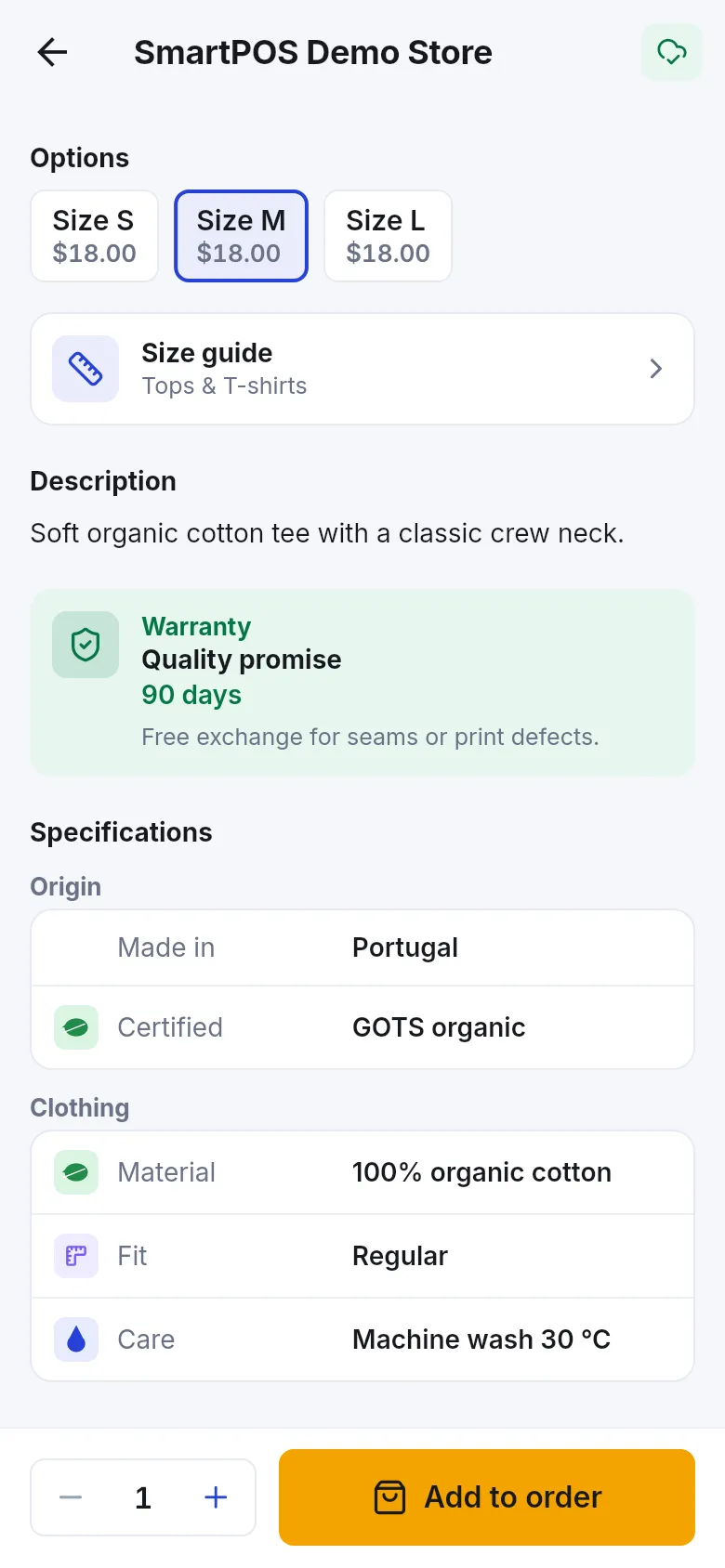
- Options, such as size, color or pack size. A crossed-out option marked Sold out can’t be chosen. See choose sizes, options and extras.
- Description, Specifications, Warranty and a Size guide when the store added them.
- Upgrade to (“A step up from this one”) and Goes well with: suggestions chosen by the store. Tap the + on a suggestion to add it straight away.
- At the bottom: a quantity stepper and Add to cart (or Add to order in stores that take orders in the app). The bar View cart shows how many items are in your cart and the running total.
Why do I have to choose a location?
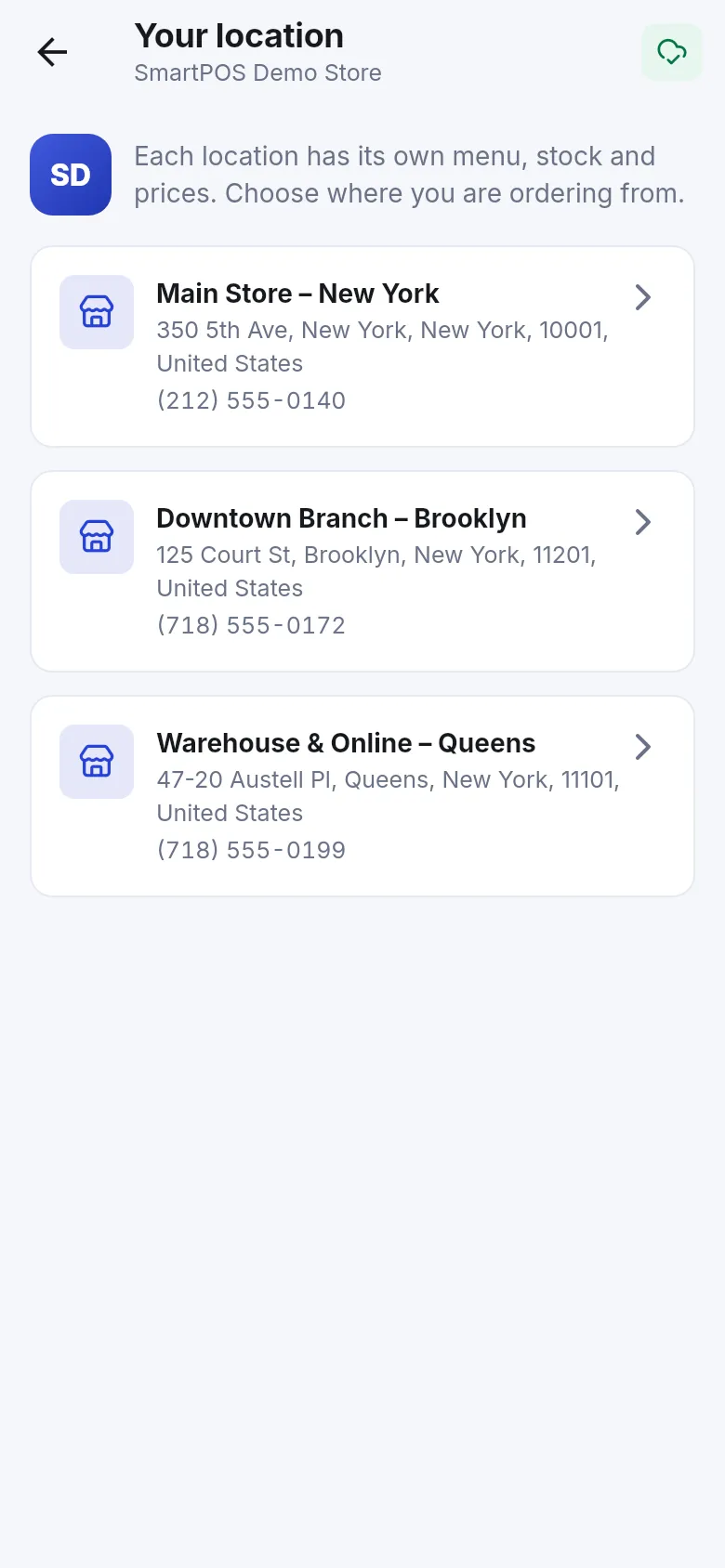
Section titled “Why do I have to choose a location?”Some stores with several branches ask you where you are ordering from. Each branch has its own menu, stock and prices.
- On the store’s Home screen, tap Choose location (or Choose a location to see its menu and prices).
- On Your location, tap the branch you want. You see its address and phone number.
- The selected branch appears at the top of Home, for example Location: followed by its name. Tap Change to switch.
Tips and mistakes to avoid
Section titled “Tips and mistakes to avoid”- Pull down to refresh. If the store just added products, pull down on the Shop tab to load them.
- Don’t rely on the app price for weighed items. Fruit, meat and other weighed products are priced at the counter.
- Check stock before you travel. Only a few left means stock is low; it is not reserved for you until you order.
- Saved copy. Without internet the app can show the last saved copy of the catalog with Saved copy · updated and a time. Prices may have changed since then.
Frequently asked questions
Section titled “Frequently asked questions”Why can't I see any products in a store?
The store has not added its products to the app yet, or you have not joined it. Join the store first, then pull down on the Shop tab to refresh. If the list still says "Nothing here yet", ask the store when it will put its products online.
Can I search by barcode?
Yes. Type the barcode numbers into the search field ("Search name, brand or barcode"), or tap the scan button next to the search field to scan it with your camera.
Is the price in the app the price I pay?
It is a close estimate. Prices in the app come from the store's own till system, but the till always calculates the final price, including offers, weighed items and taxes. If you see a difference, the till price applies.
What does the crown or "Member price" label mean?
It means you see a special price for members of this store. Some stores give members a better price once they approve your membership. Until then you see the normal shelf price.
Why does the store ask me to choose a location?
Some stores have several branches, and each branch has its own menu, stock and prices. Choose the branch you are ordering from so you see the right products. Switching later empties your current order.
Why is a product marked "Sold out" or "Out of stock"?
The store has none left at your chosen location. You cannot add it to an order. Check again later or ask the store in chat.
What are "Upgrade to" and "Goes well with"?
They are suggestions chosen by the store. "Upgrade to" shows a step up from the product you are looking at, and "Goes well with" shows items that are often bought together with it.