

Join a store by QR code, store code or link
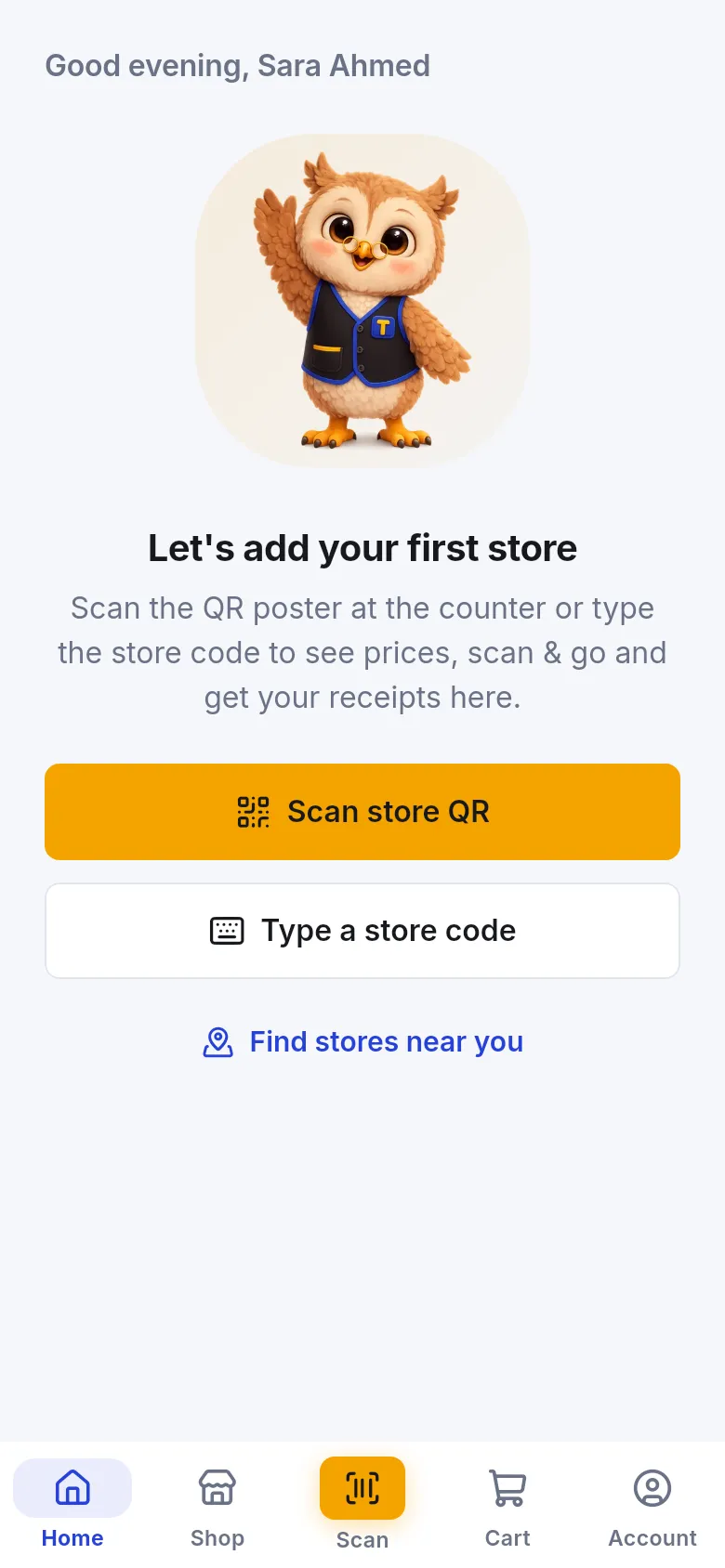
To join a store in SmartPOS Shopper, scan the store’s QR poster, type its 6-character store code, open a store link, or tap Join store in Find stores. Joining makes you a member of that store: you can then check member prices, use Scan & Go, show your store card and get your receipts in the app.
Before you start
Section titled “Before you start”- Sign in to the app. (You can also scan the poster first with Scan a store QR first on the sign-in screen; you join right after signing in.)
- Have the store’s QR poster, store code or link ready, or find the store in Find stores.
How do I join a store?
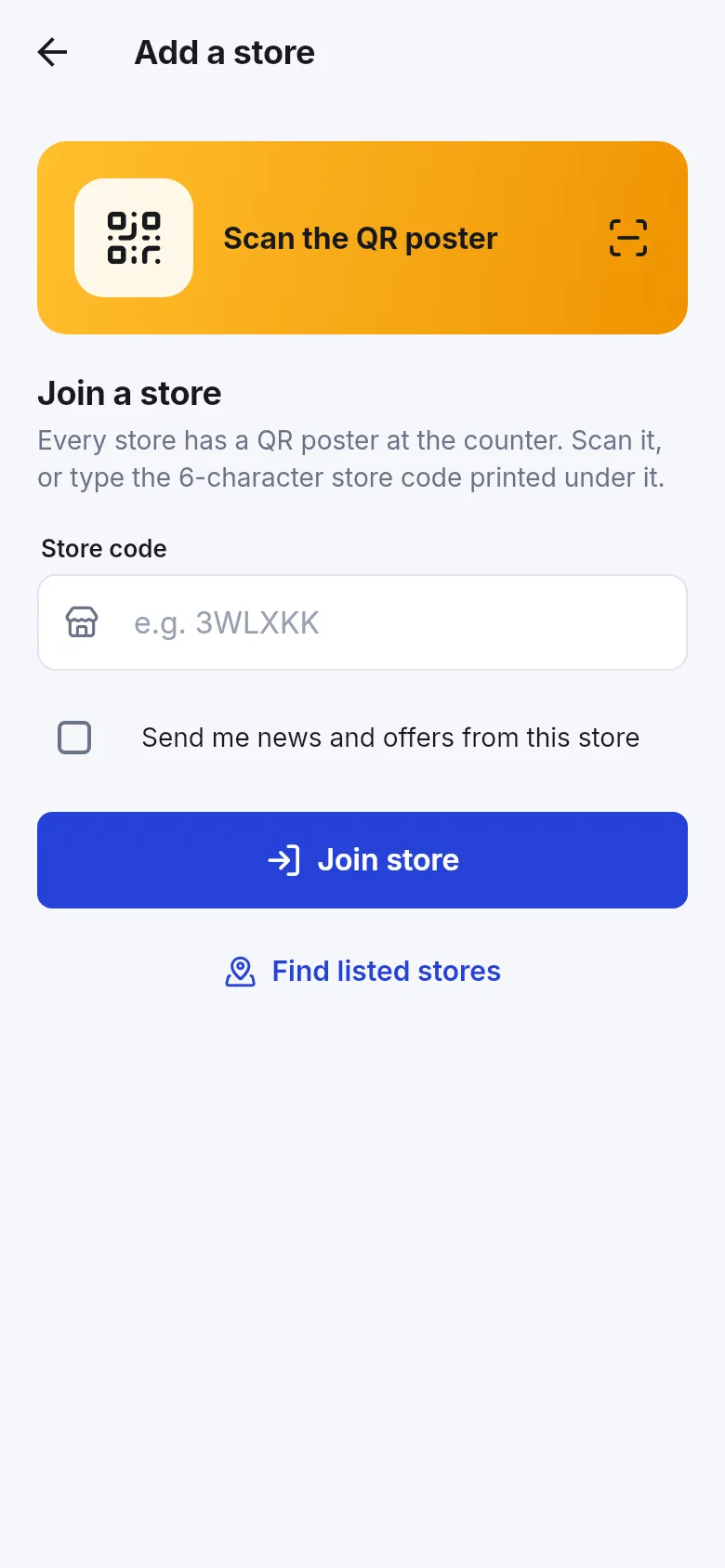
Section titled “How do I join a store?”- On Home tap Scan store QR (first store), or go to Account › My stores, tap + to open Add a store.
- Optional, on Add a store: tick Send me news and offers from this store first.
- Tap Scan the QR poster and allow the camera if Android asks.
- Point the camera at the QR code on the store’s poster. The app reads it and joins the store straight away.
- On Home tap Type a store code, or go to Account › My stores, tap + to open Add a store.
- In Store code type the 6 characters printed under the QR poster, for example 3WLXKK.
- Optional: tick Send me news and offers from this store.
- Tap Join store.
- Tap the link the store sent you (in a message, on its website or social page).
- If SmartPOS Shopper is installed, the link opens the app and joins the store for you (after you sign in, if you weren’t signed in yet).
- If the app isn’t installed, the link opens a Join [store name] web page with Open in SmartPOS Shopper and Get it on Google Play. Install the app, then tap the link again, or type the Store code shown on that page.
- Open Find stores (see Find stores).
- Find the store and tap Join store on its card.
What happens after I join?
Section titled “What happens after I join?”It depends on how the store accepts members. Find stores shows this on each card.
| Store setting | What you see | What it means |
|---|---|---|
| Open to everyone | Welcome to [store]! | You are a member at once. Member prices, receipts and your account at the store work right away. |
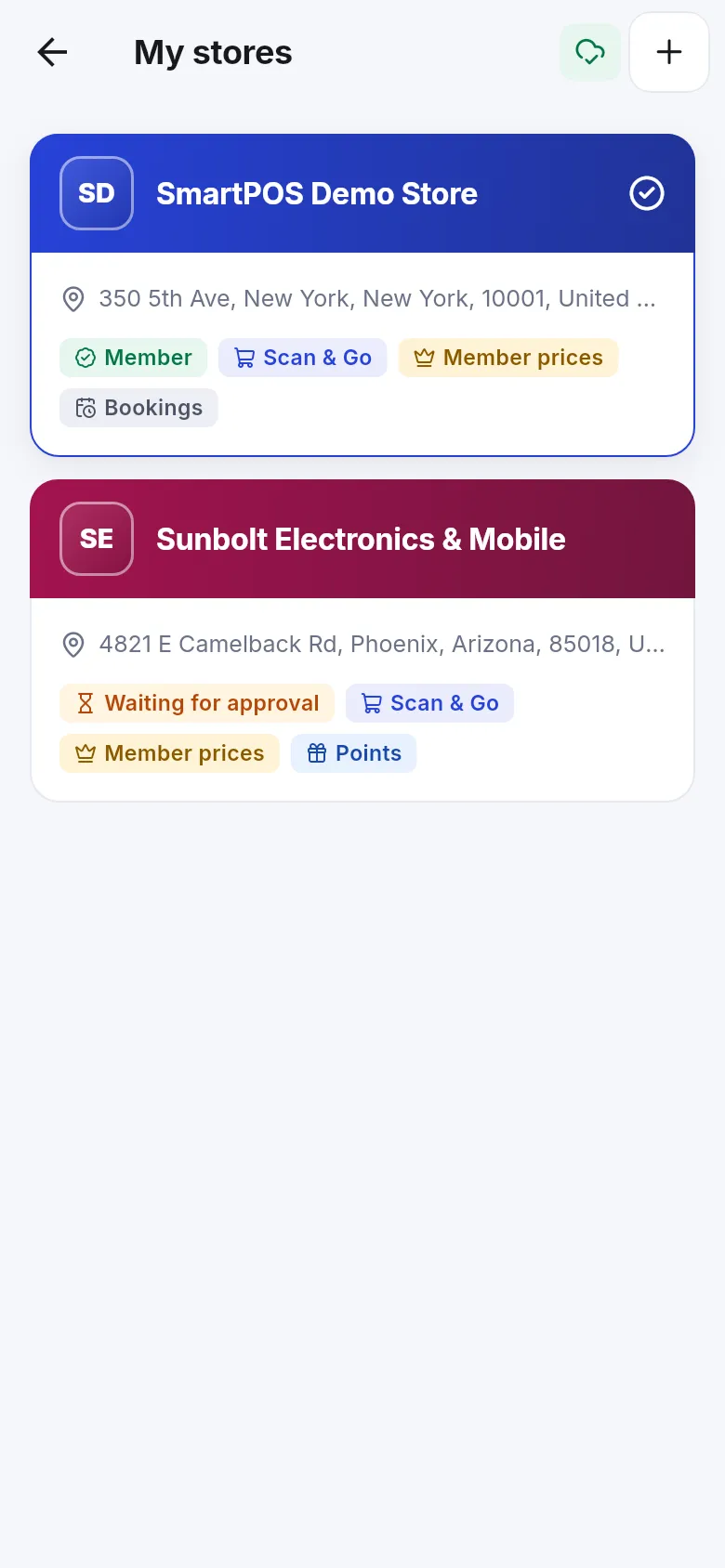
| Joining needs approval | Request sent to [store]. You’ll get a message when they approve it. | Your membership shows Waiting for approval. You see shelf prices until the store approves you. |
While you wait, you can already browse, check shelf prices and show your store card. When a cashier who is allowed to add customers scans your store card, that approves you on the spot: “The cashier will approve your membership when they scan this card.”
Why is the price different before approval?
Section titled “Why is the price different before approval?”Some stores give members their own prices. Until you are approved, the app shows the normal shelf price and says “Members may pay less once the store approves your membership.” After approval the banner on Home changes to You see your member prices in this store.
Tips and common mistakes
Section titled “Tips and common mistakes”- Code not accepted? “We couldn’t find a store with that code. Check it and try again.” Look-alike letters and numbers are easy to mix up. If it still fails, the store may have made a new code: ask for the current poster.
- “This store isn’t available in the app right now.” The store has switched the app off for now. Try later or ask the store.
- One account, many stores. Joining a second store doesn’t change the first. See Use several stores.
- Already a customer there? Use the same e-mail the store has for you, so the store can link your membership to your existing customer record.
Frequently asked questions
Section titled “Frequently asked questions”Where do I find a store's code?
Most stores put a SmartPOS Shopper QR poster at the entrance or the counter. The 6-character store code is printed under the QR code. You can also ask the cashier for it.
Why does it say Waiting for approval?
This store approves new members before they become active. Until then you see shelf prices and can't see your account at the store. You get a message when the store approves you, or the cashier can approve you when they scan your store card at the counter.
The app says it couldn't find a store with that code. What is wrong?
Check each character. Stores sometimes make a new code and old posters stop working for new members. Ask the store for its current code or scan the poster at the counter.
Do I have to tick Send me news and offers from this store?
No, it is optional and off by default. Tick it only if you want e-mails with news and offers from that store. You can change it later on the store page.
Is joining a store free?
Yes. Joining is free and doesn't commit you to buy anything. You can leave a store at any time from its store page.
What does the store see when I join?
The store sees your name and e-mail, and your phone number if you added one to your profile. If you were already a customer there with the same e-mail, your new membership links to your existing customer record, so past purchases stay together.
What happens if a store doesn't accept my membership?
The app shows This store didn't approve your membership. You can't use member features at that store. Contact the store if you think this is a mistake.